A recommended method of deploying Netframe Manager is by creating a VM for it on your Netframe Host.
This quick start guide goes through the process of:
- Deploying a Netframe Manager VM
- Adding your Netframe Host to the Manager's inventory
¶ Installing Netframe Manager
¶ Confirm system requirements
The recommended minimum spec of your Manager VM is:
- 4 vCPU cores
- 8GB memory
- 100GB storage
- The Manager's VM image has 100GB storage provisioned. Approximately 10GB will be used at the time of deployment.
- 1 network interface (NIC)
The installation package will come pre-configured with these settings, and can be adjusted post-installation. See VM Configuration for more info.
As Manager will be installed on a VM, please ensure that the VM's Host has the appropriate resources to allocate to Manager in addition to its other VMs.
¶ Prepare installation media
More information: Download Netframe
- Go to the download portal to download the Netframe Manager zip –
netframe-manager-X.X.X.zip - Unzip the archive to your local machine.
- The contents should be
netframe-manager.qcow2andnetframe-manager.xml
- The contents should be
- Upload both files to a storage pool on your Netframe Core host.
- See Storage for how to upload files
- Important: Make sure to NOT upload the files to the
isopool. Ensure that they are not in a nested subdirectory in the pool
¶ Install Netframe Manager

Register the Manager VM
- Log in to your Netframe Core Host and navigate to the storage tab.
- Click on the name of the pool containing your manager files to display the contents.
- Click the plus next to the manager XML file:
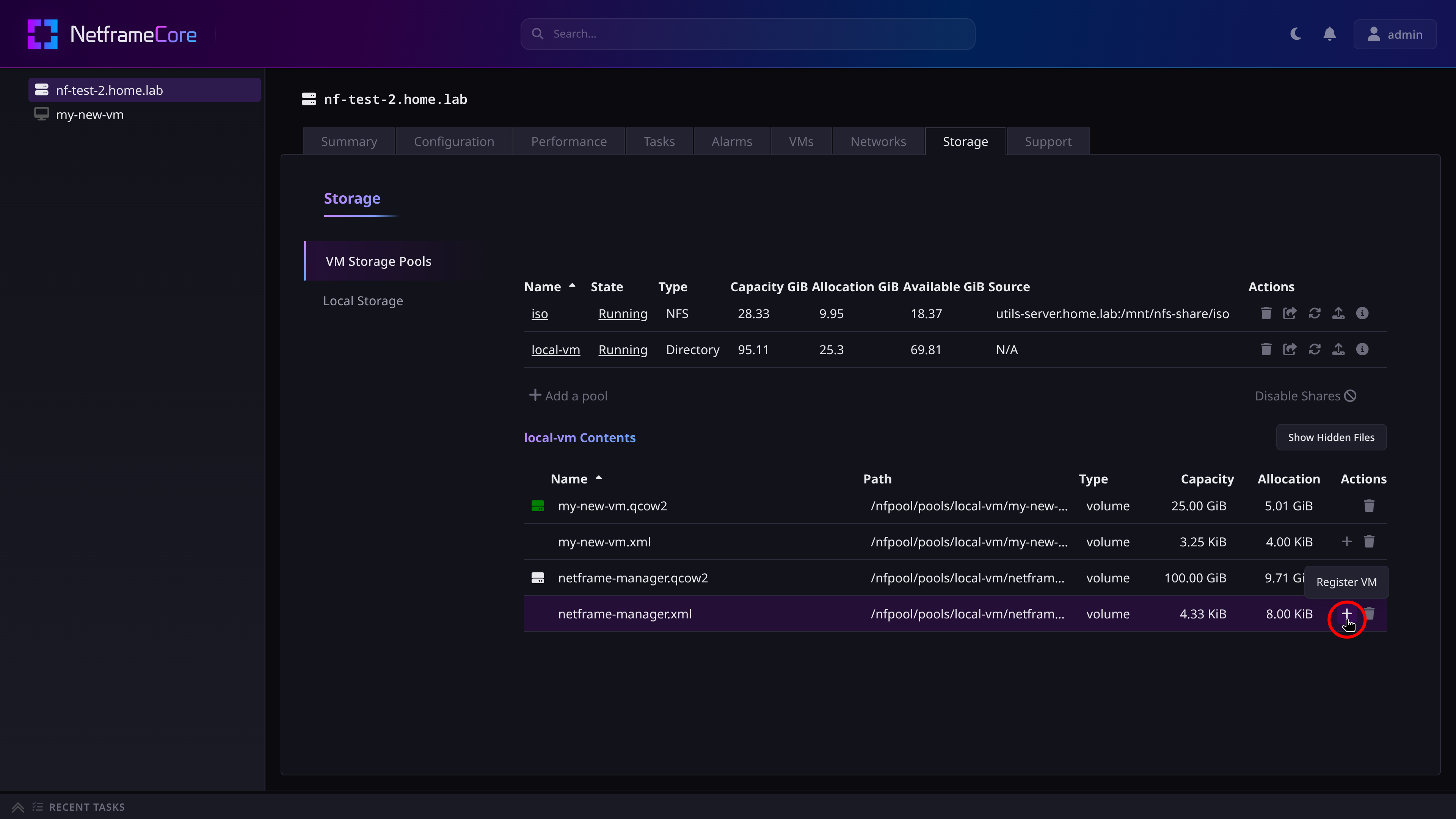
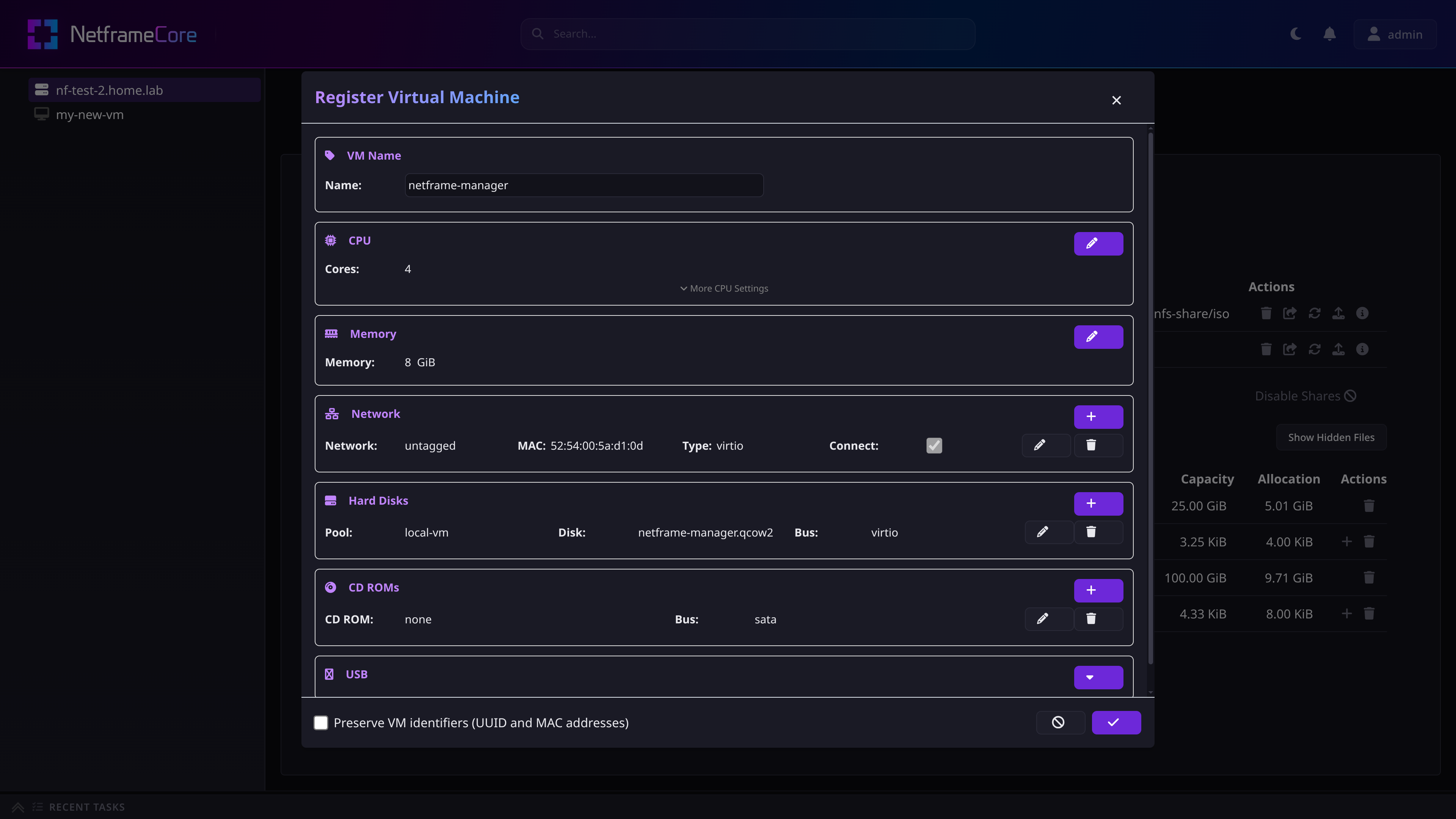
- This will open a VM registration page where you can select the specific options for the manager. The manager comes preconfigured with its disk in the local-vm pool. Edit the Hard Disks section, ensure the selected Pool matches the pool where the manager VM disk is located:
- Navigate to the new Manager VM's configuration tab
- Edit the VM's Network connection, and select one of the networks on your Host
- Save your changes
Optional: You can also change the CPU and Memory allocations using the VM's Configuration tab. Defaults are suggested values. See VM Configuration for more info
- Power on the VM, and open its Console to finish the installation process
¶ Post-installation setup
In the Manager's console:
- Read and understand the EULA, press Y to accept.
- Note: You can scroll through the EULA using arrow keys and pg-up and pg-down.
- You will be prompted to configure two accounts:
- “admin” user: Enter a username and password for accessing the Manager Console User Interface (MCUI) and for accessing the VM via SSH
administrator: Enter a password for the administrator user for accessing the Manager GUIadministratorhas full read and write access to everything in the manager- Other users with different access privileges can be added later.
- Once the deployment steps are complete you will be presented the MCUI login screen.
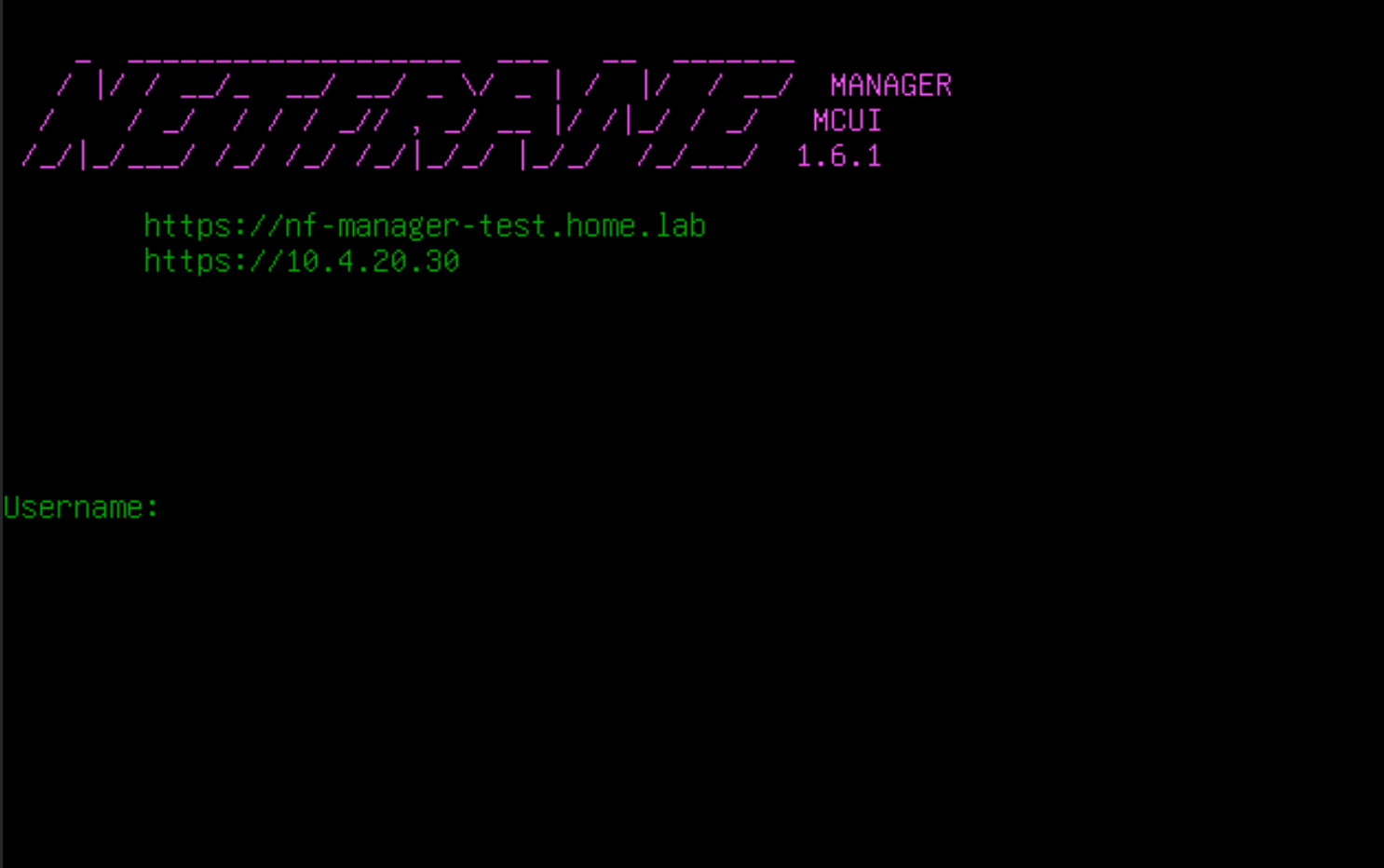
IMPORTANT: Remember to update your Netframe Manager IP address (using the MCUI), and ensure the FQDN for manager resolves to this IP address.
Now login to the web interface of Netframe Manager. At first login you will be prompted to specify the manager address, this is the FQDN that all hosts will connect to when joining the manager. Specify the manager FQDN value and the browser will refresh.
It is recommended to now configure other essential services such as NTP, Syslog, etc as required.
¶ Adding your Netframe Core Host to the Manager
¶ Login
On the MCUI (pictured above), you will see an IP address and URL. If you open one of them in an internet browser on your network, you will connect to the Netframe Manager GUI and be able to use it.
Login using the administrator username, and the password you set for it.
After logging in, you should see a screen that looks like the following:
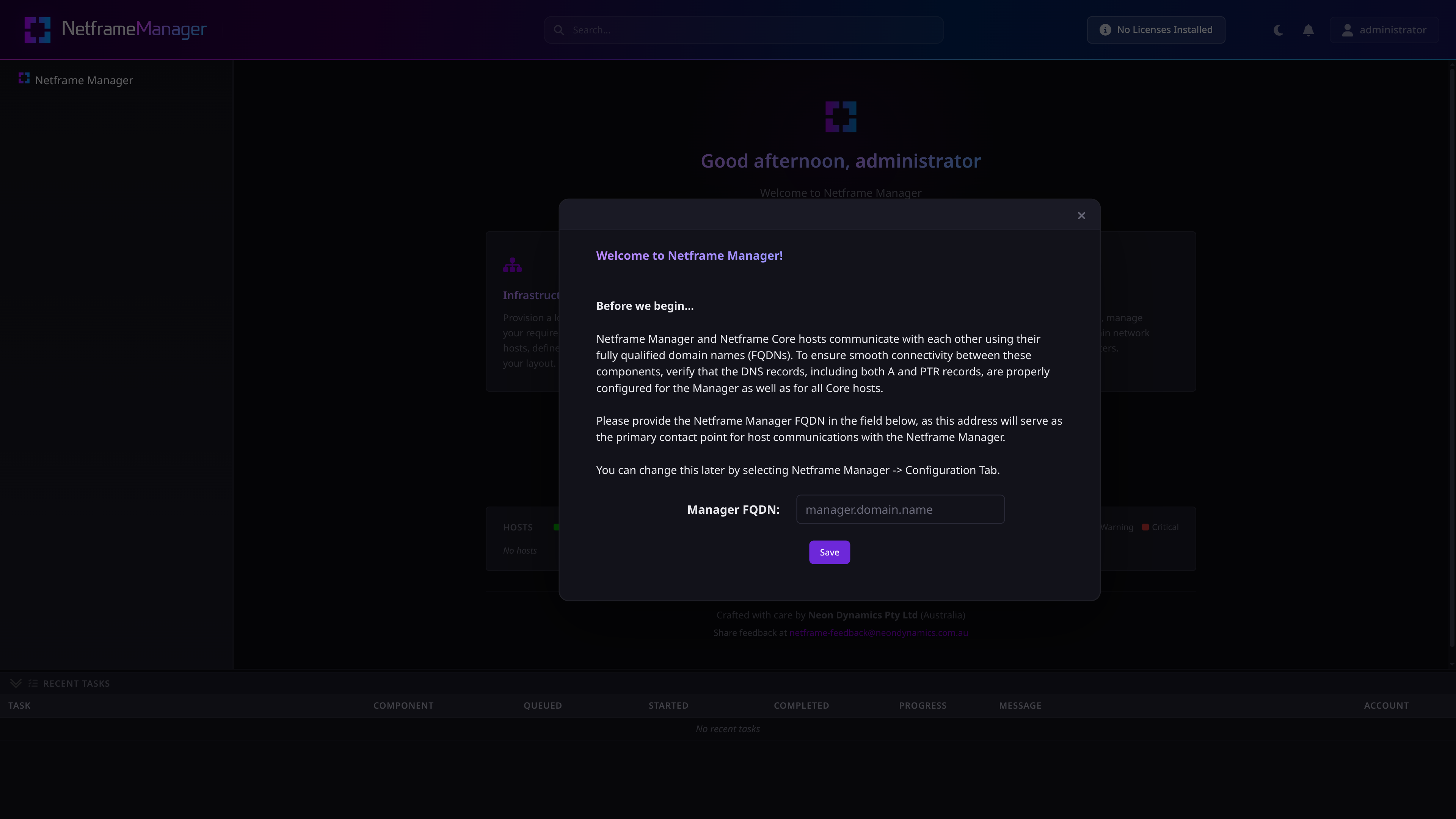
You will be prompted to set the Manager's address, as a Fully Qualified Domain Name (FQDN). This is required for the Manager to communicate with Netframe Core Hosts; Hosts can not be added until this is set.
If you accidentally click off the modal, or otherwise want to edit the Manager's address later, this can be done in the Manager's Configuration tab.
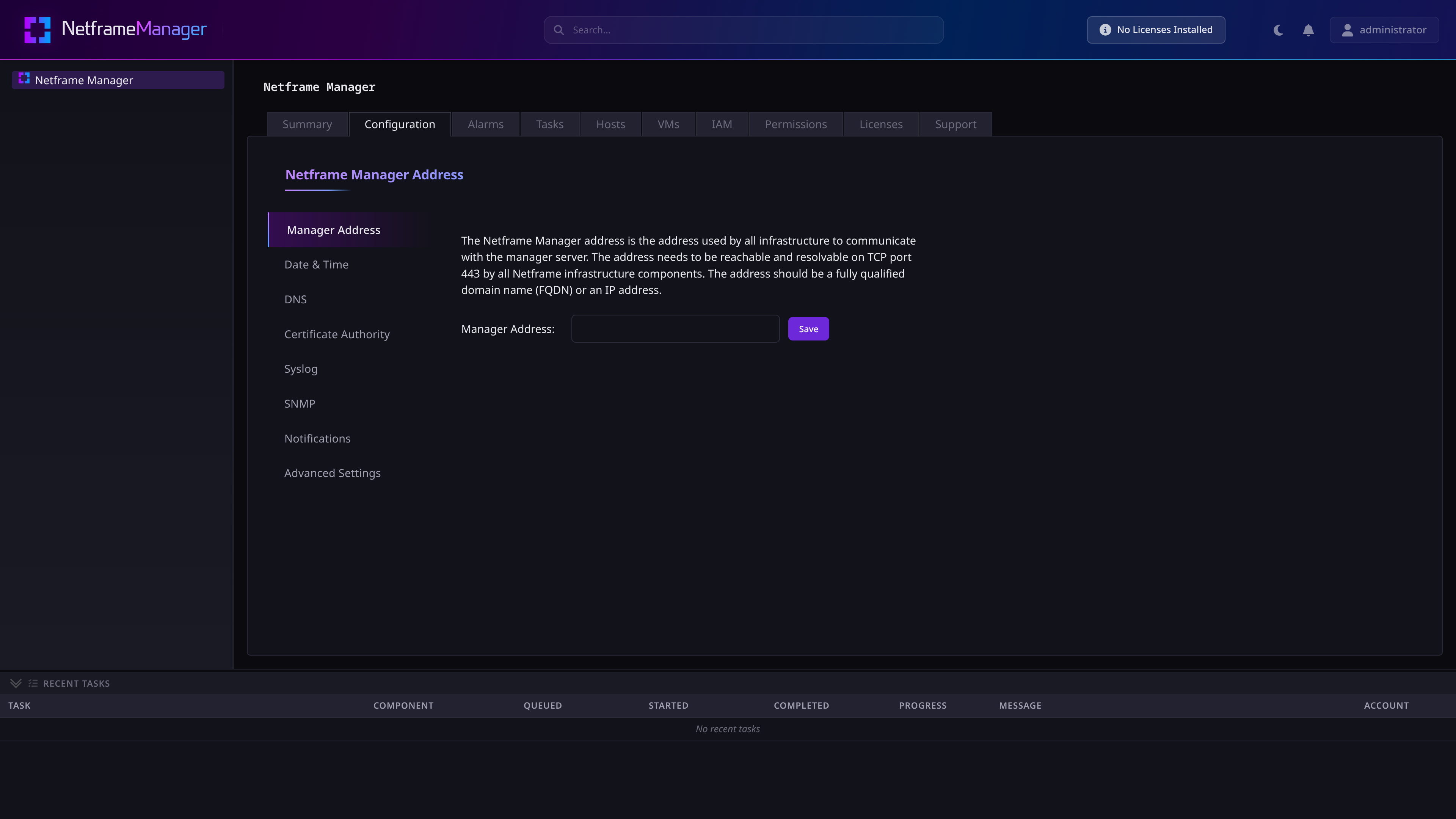
IMPORTANT: The manager address you set must exist in your DNS and be resolvable by both the Manager and any Netframe Core Hosts you wish to add.

Install a Netframe License
More information: Licensing
- Contact Neon Dynamics to purchase a Netframe license
- https://netframe.com.au/company/contact
- Email: [email protected]
- Phone: +61 300 229 889
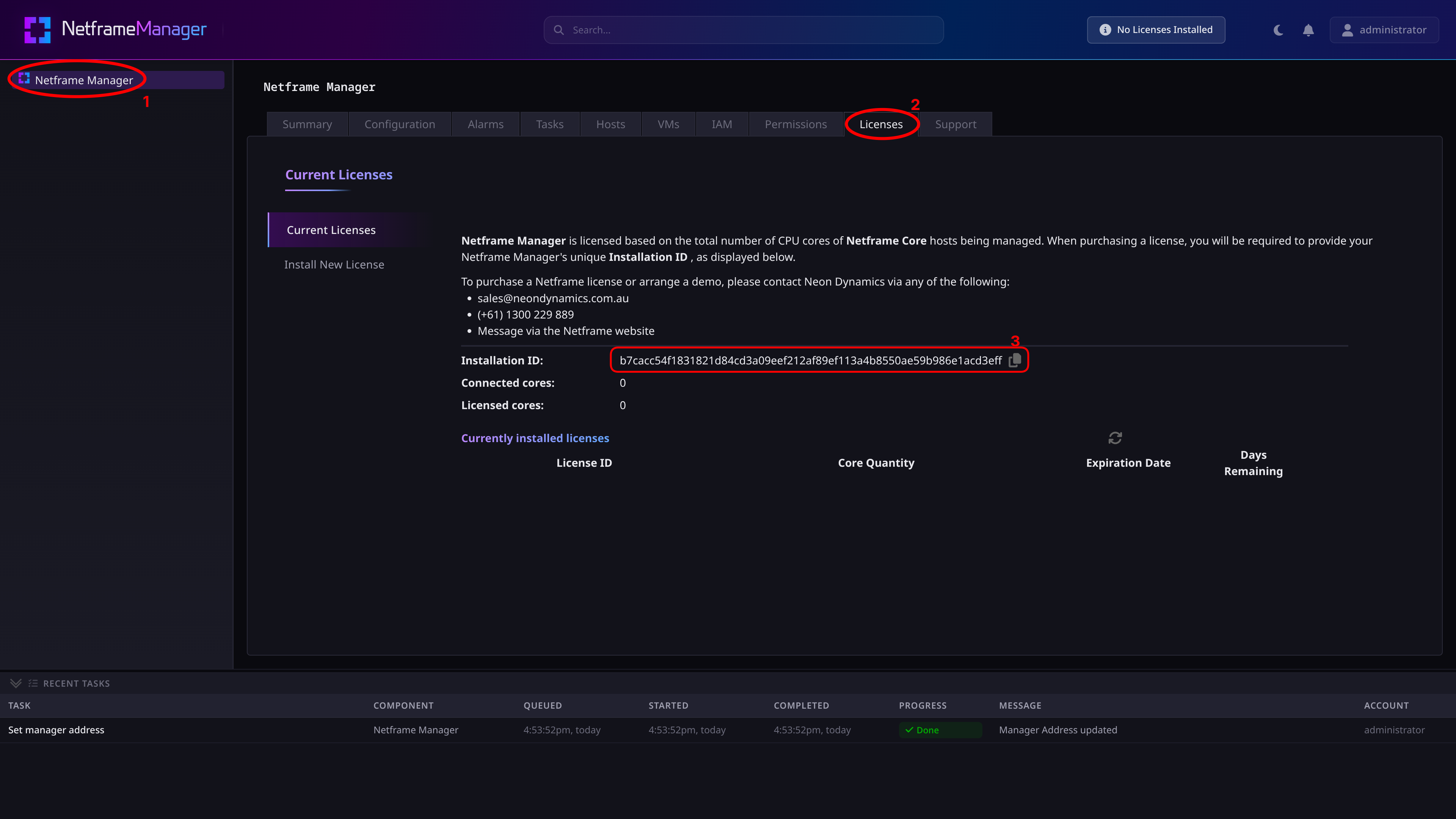
- Navigate to the Netframe Manager object's Licenses tab
- You will need the Installation ID listed to acquire a license
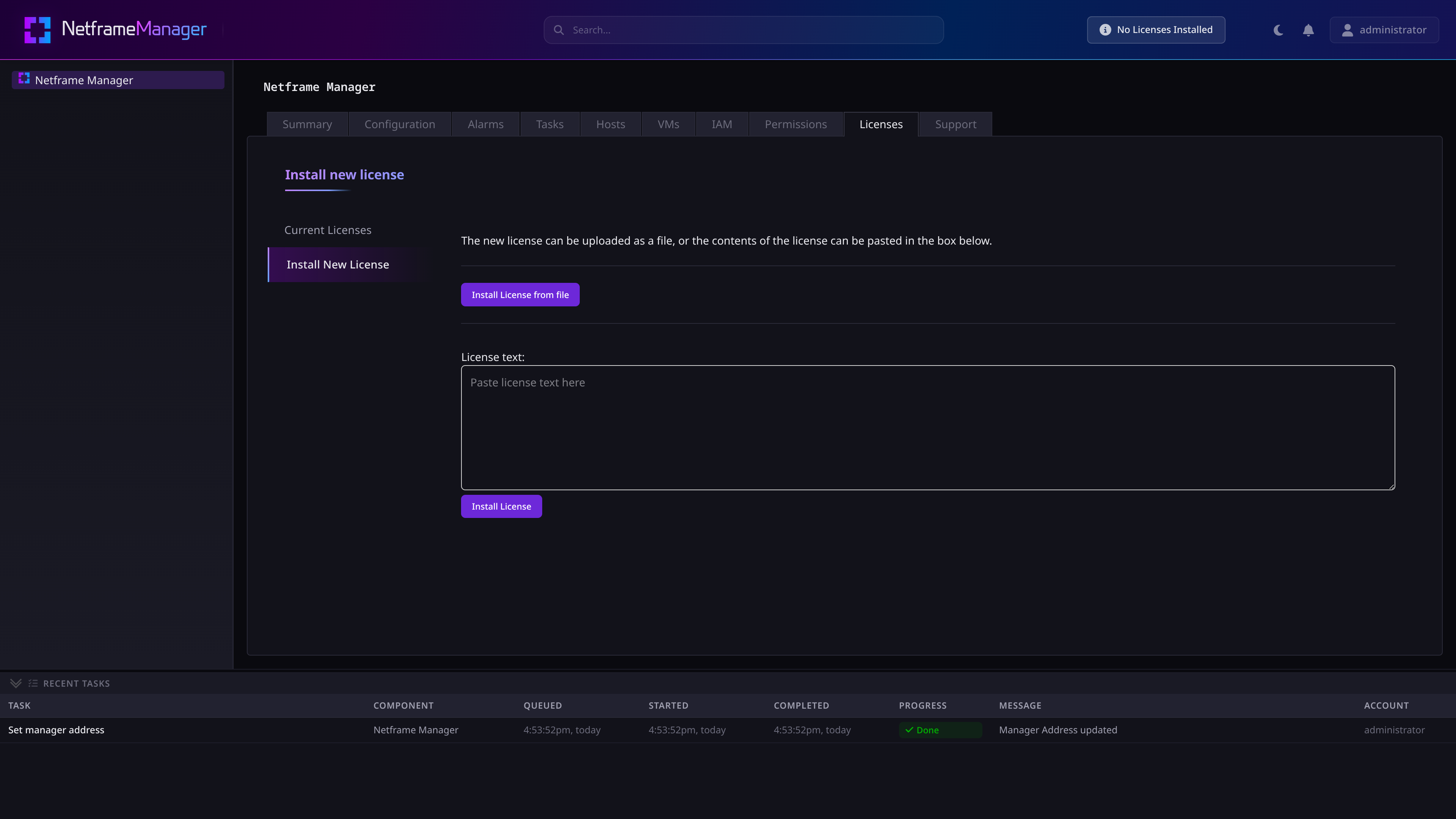
- Once you have received your Netframe license, navigate to the Install New License sub-tab
- In the Install New License sub-tab, either select your license file, or directly paste its contents in the text field and press the Install License button
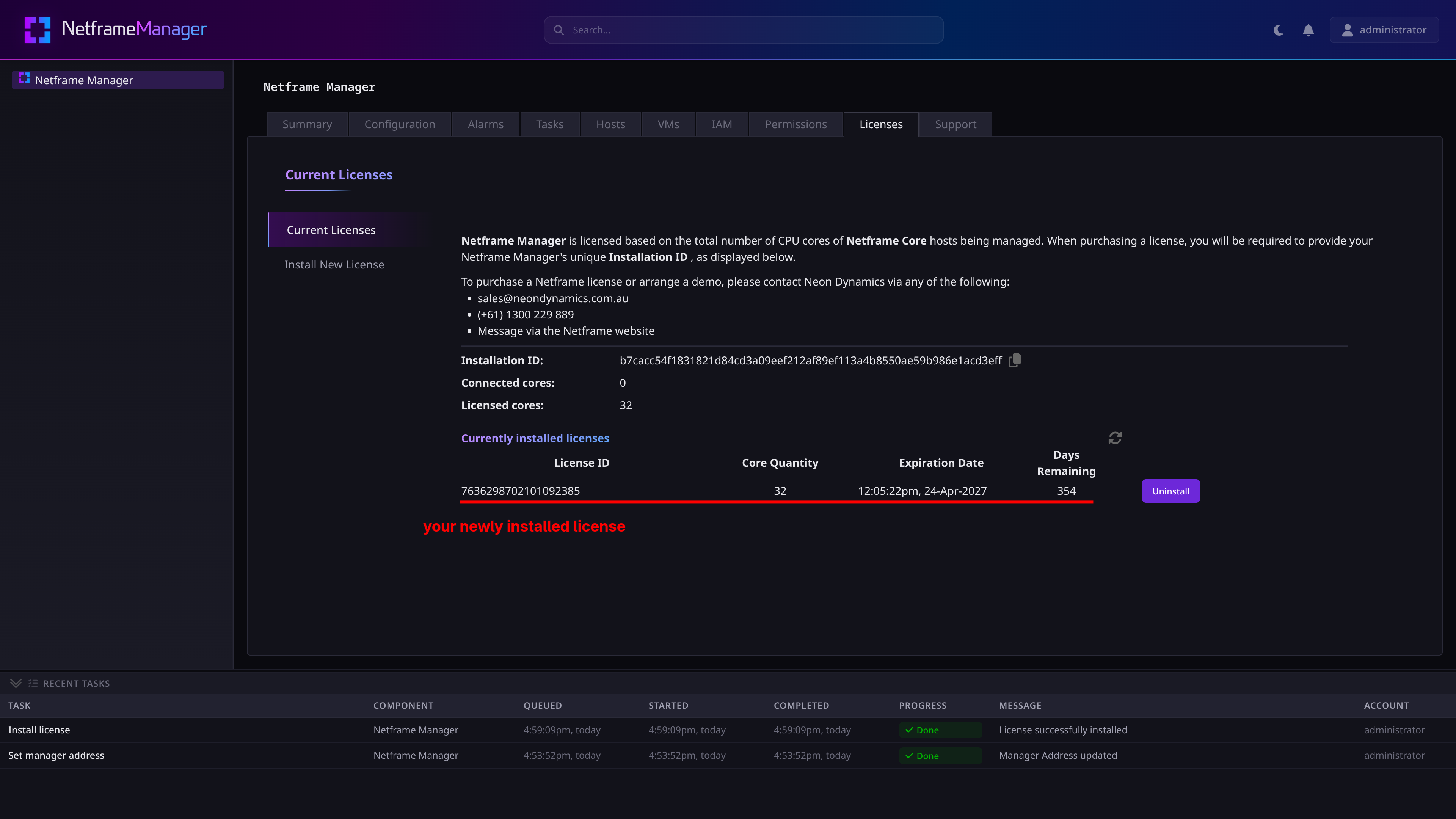
- Your successfully installed License can then be verified in the Current Licenses sub-tab
¶ Add your Netframe Host to the Manager
Important: If you have not received and installed any Netframe licenses, any Netframe Hosts you attempt to add will fail to connect to Manager. See above or Licensing for more information.
To add a Netframe Host to the Manager:
- Right-click the Netframe Manager object, and select “Add Host” from the context menu
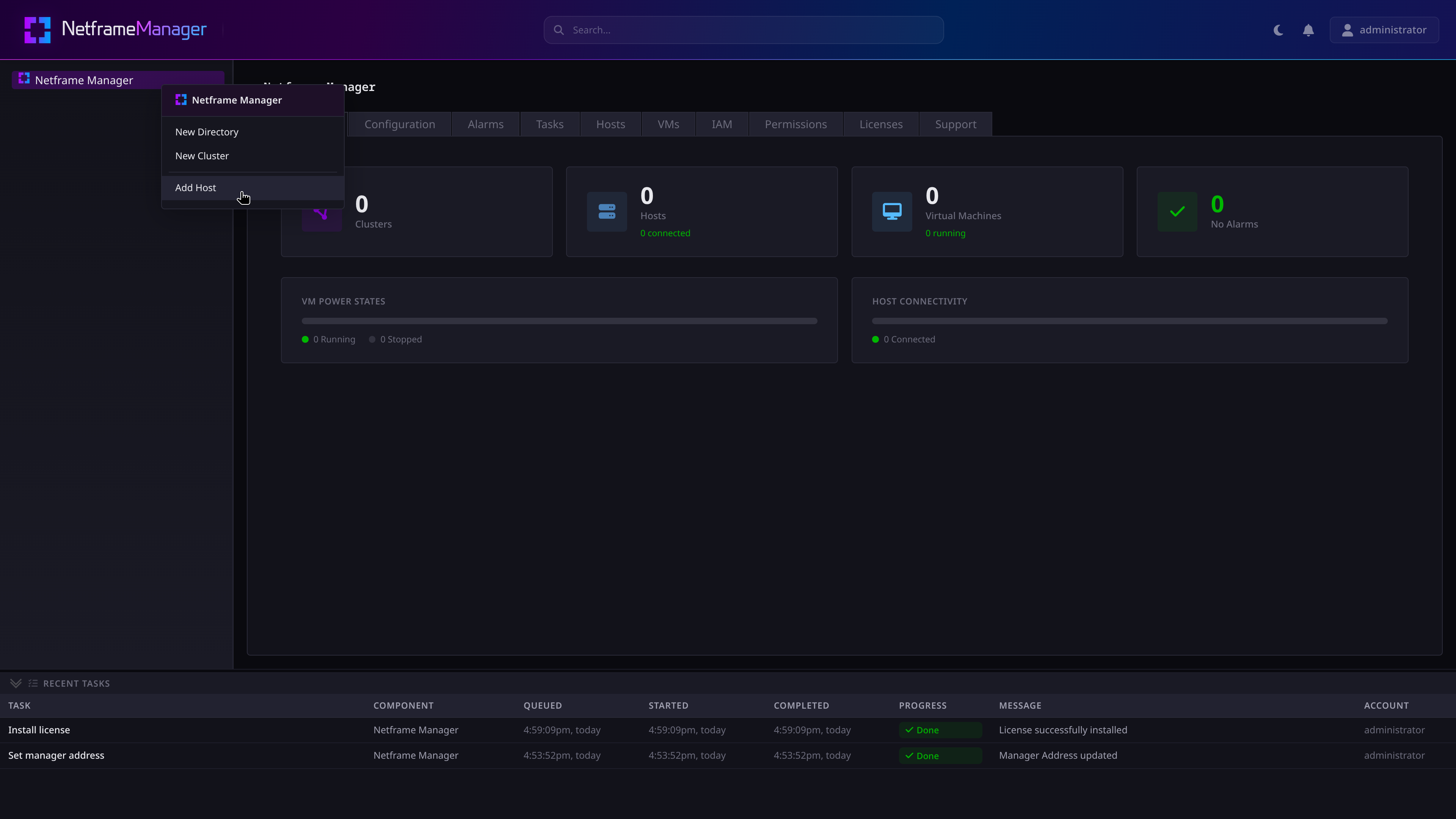
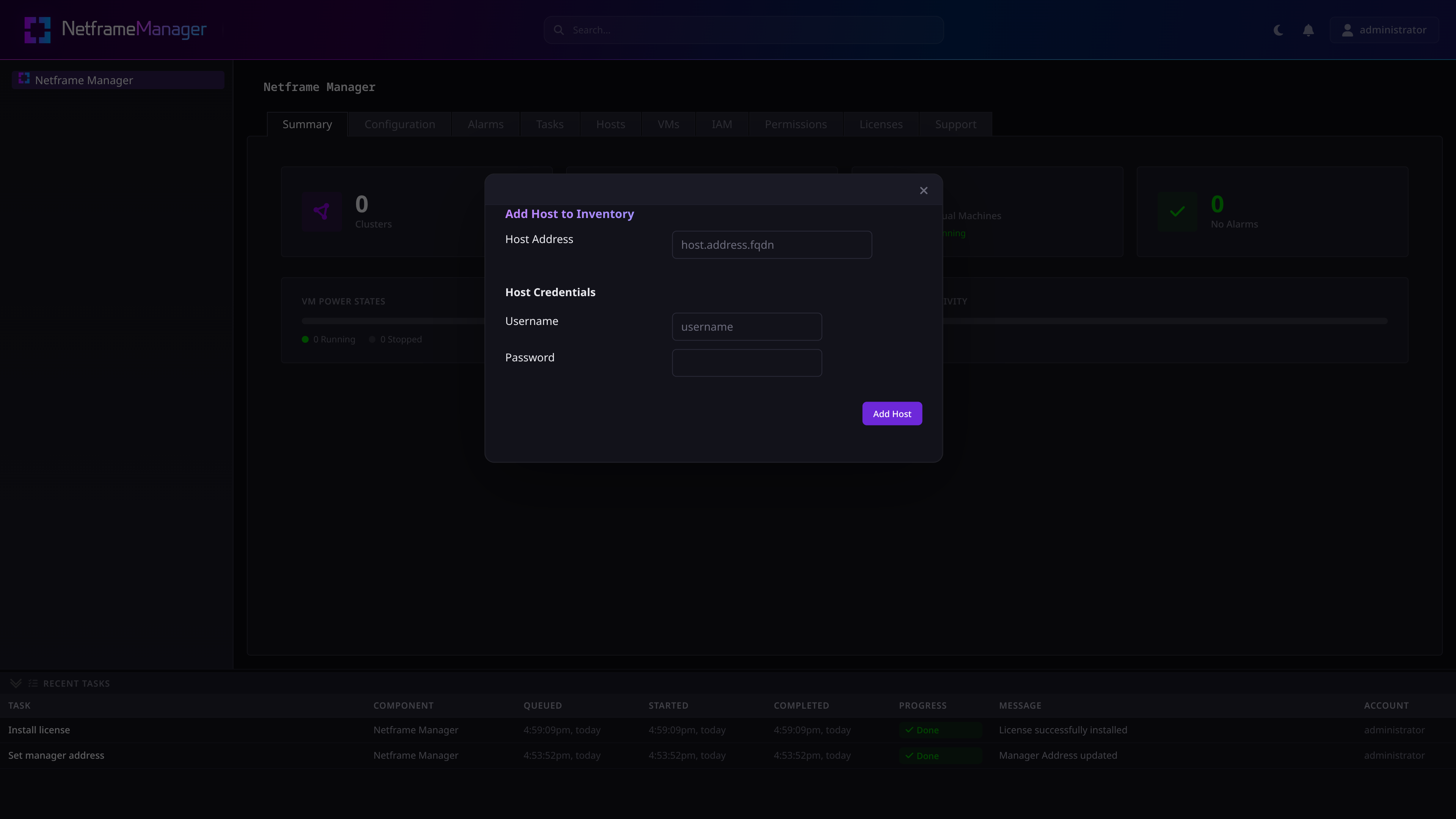
- Enter your Host's details:
- Host Address: The same address you would use to access your Host's GUI
- Username and Password: The same as you would use to login to your Host's GUI
After pressing Confirm, your Netframe Core Host should now be added to the Manager
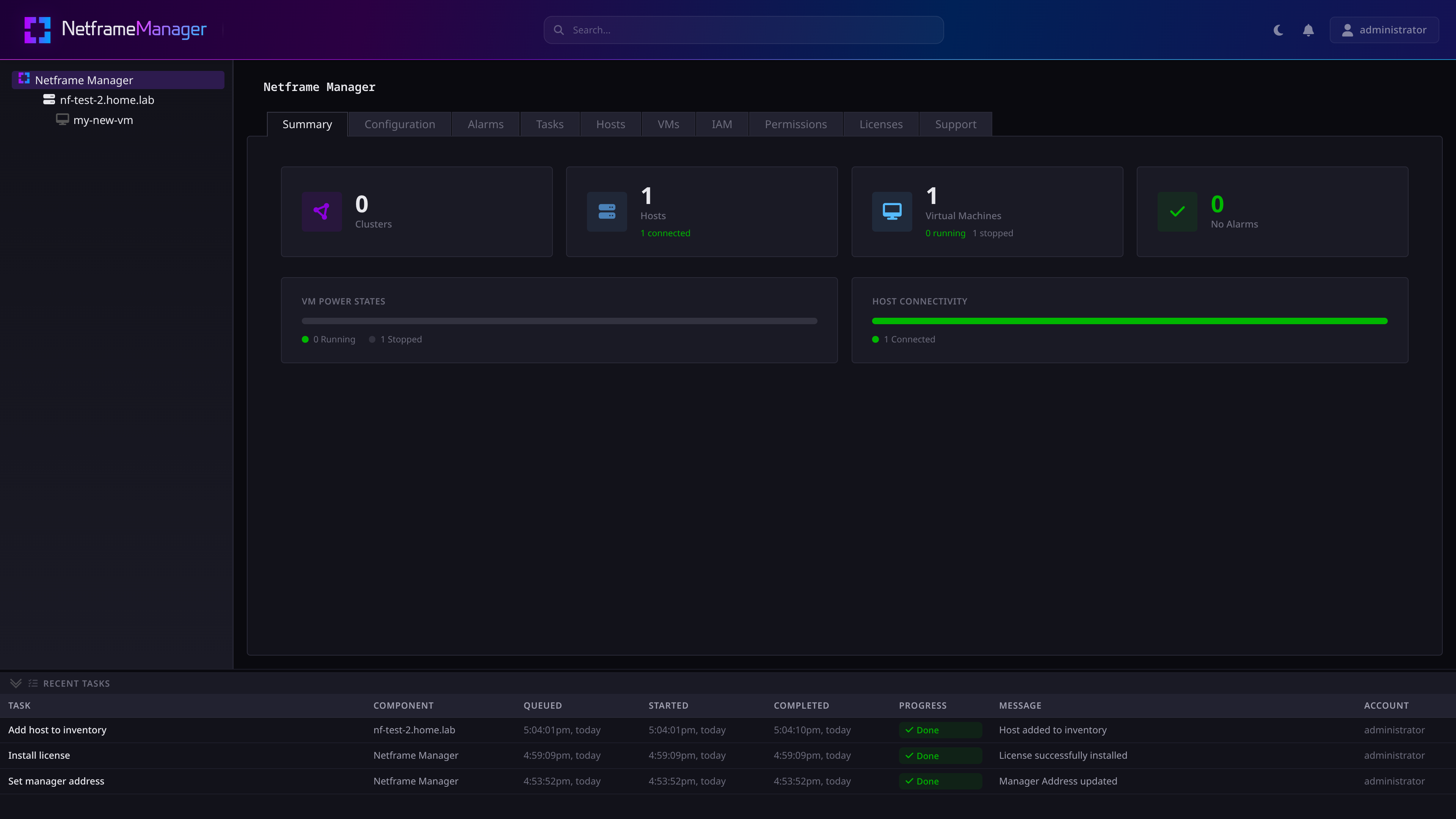
Congratulations! You can now use Netframe Manager to manage your Hosts and their VMs.
¶ Recommended Next Steps
After deploying your Netframe Manager, we recommend that you perform the following actions:
- Give your Netframe Manager a static IP address, which will make it easier to access long term
- Connect your hosts and form a cluster