A VM's configuration settings can be seen and managed in its configuration tab
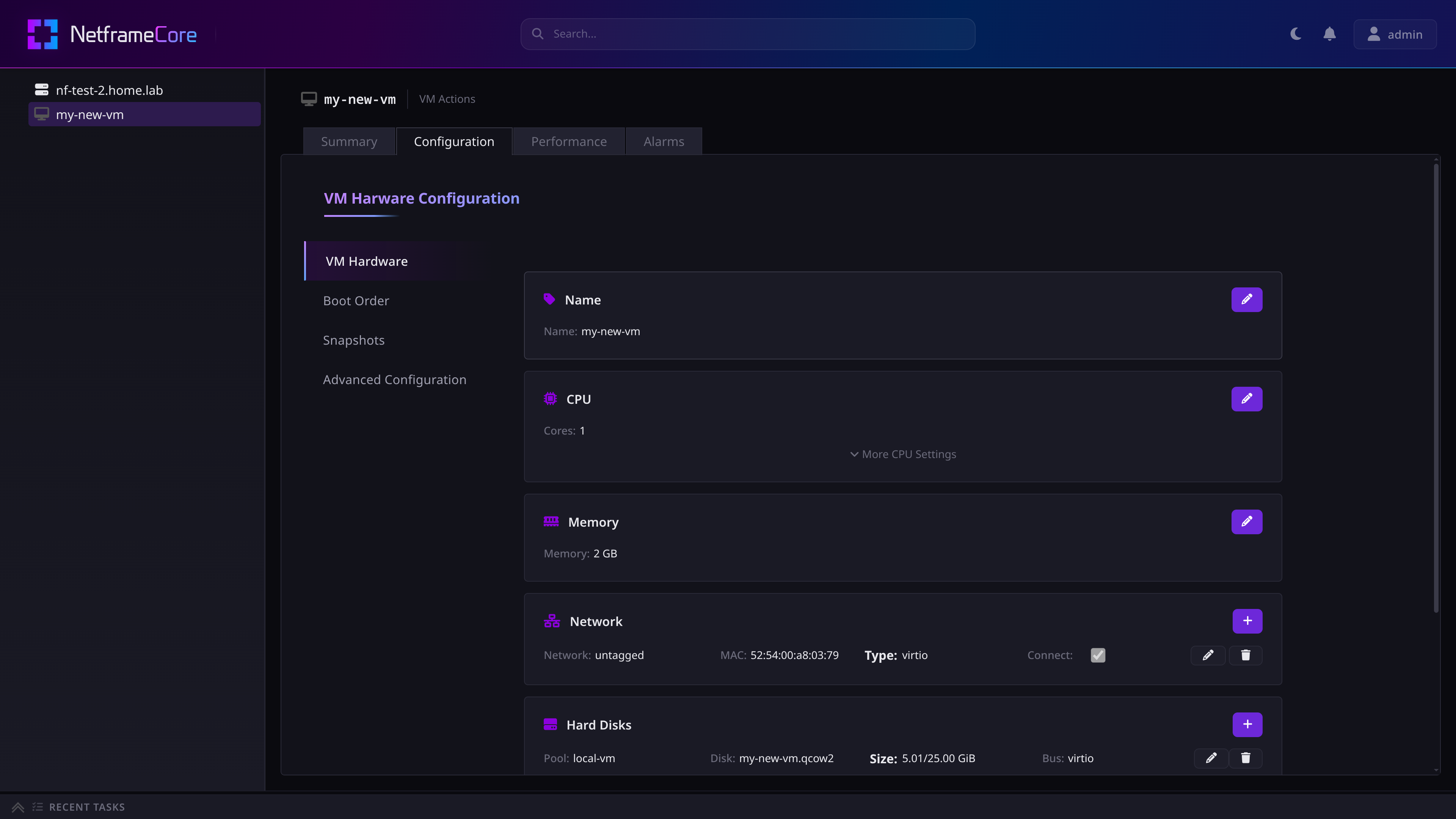
¶ VM Hardware
Here, the following virtual hardware settings can be adjusted:
¶ VM Name
Note: This can only be adjusted when the VM is powered-off.
¶ CPU
Adjust how many CPU cores the VM has.
- Note: Adjustments to this setting only apply after rebooting the VM.
Opening the More CPU Settings dropdown will allow you to also adjust how many CPU cores per socket the VM has.
¶ Memory
Adjust how much memory/RAM the VM has.
- Note: Adjustments to this setting only apply after rebooting the VM.
Be careful when adjusting this, as using up all of the Host's memory can cause problems.
¶ Network
Add network interfaces to the VM
- A VM can have multiple network interfaces spanning different VMnets
- Networks can be individually disconnected without removing the NIC
More information on configuring networks: Networking
¶ Hard Disks
Add storage drives to the VM
- A VM can have multiple storage drives connected
- Hard disks live in your Host's storage pools (excluding the
isopool)
More information on configuring storage: Storage
Note: Expanding the capacity of a VM's allocated storage is currently unsupported, but can still be achieved by following the standard libvirt process via CLI.
¶ CD ROMs
Mount a CD ROM to the VM
- This is the main way to install an OS onto VMs
- CD ROMs can be ejected from the VM at runtime
¶ Boot Order
Select which connection to try and boot from first. Available options are:
- Hard Disk (default)
- CD ROM
- Network
Note: Adjustments to this setting only apply after rebooting the VM.
¶ Snapshots
More information: Snapshots
Manage a VM's snapshots, including:
- Creating new snapshots from VM's current state
- Reverting to snapshots
- Deleting snapshots
¶ Advanced Configuration
Directly edit the VM's XML configuration file. Adjustments are not made until pressing the Update XML button at the bottom.
WARNING: Only modify this if you know what you're doing