There are two main ways to organize Hosts in your Manager:
- Directories
- Clusters
¶ Directories
Directories can be used to provide logical groupings for Hosts, and can be used to facilitate fine-grained permissions and access control.
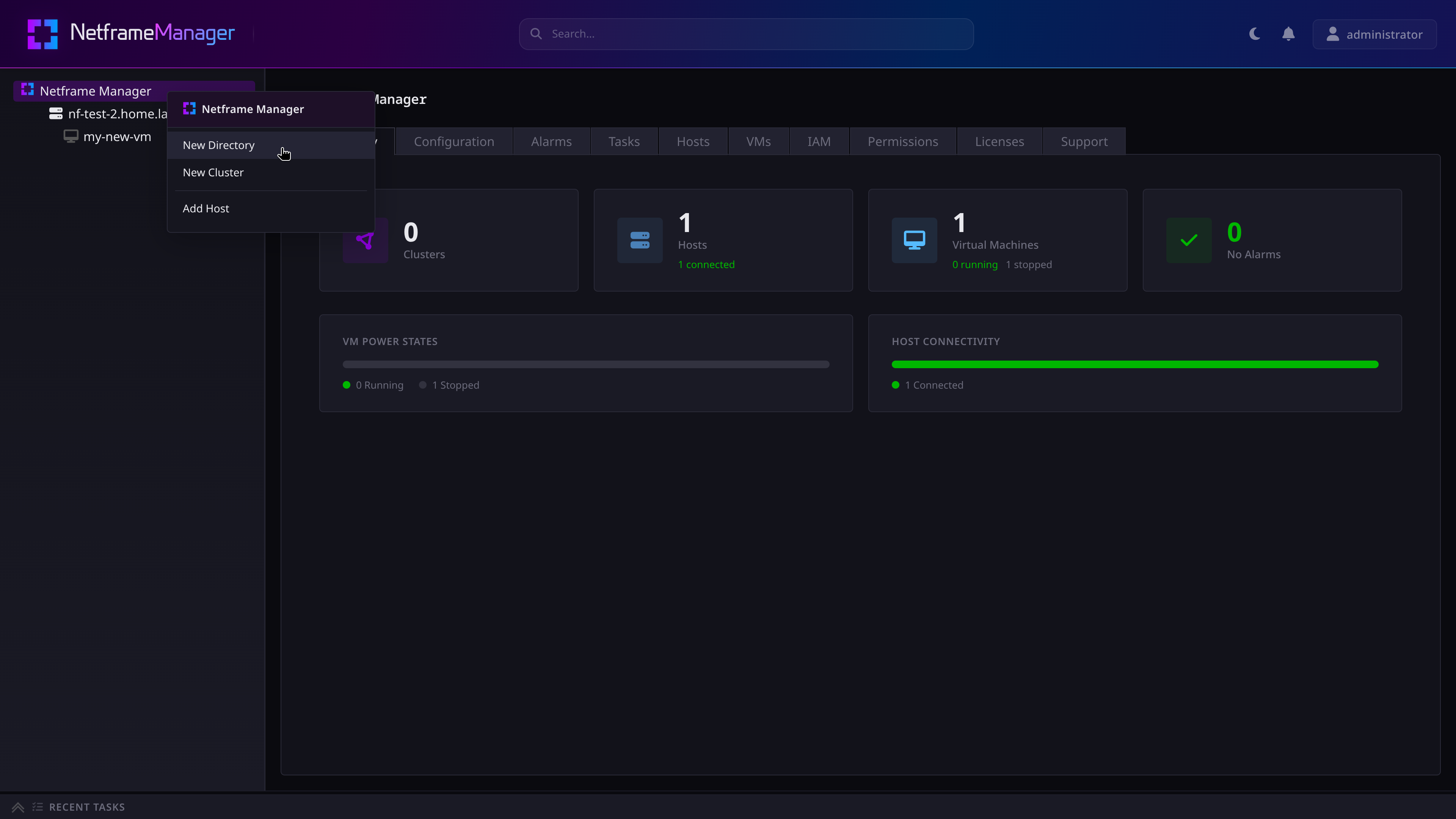
To create a directory, right-click on the Netframe Manager object or another directory, and select New Directory
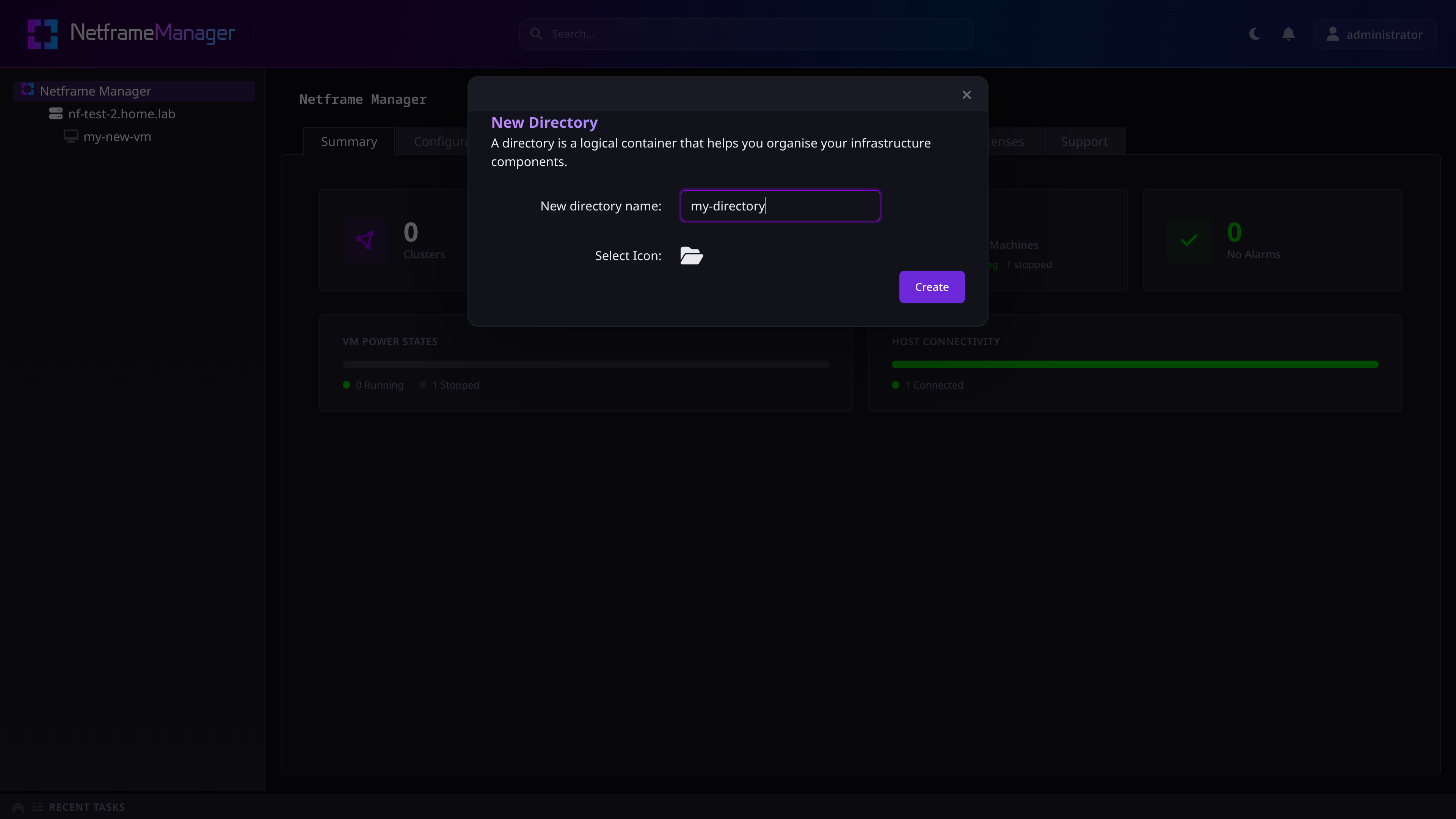
You can then input the name of your new directory, and select an icon for it
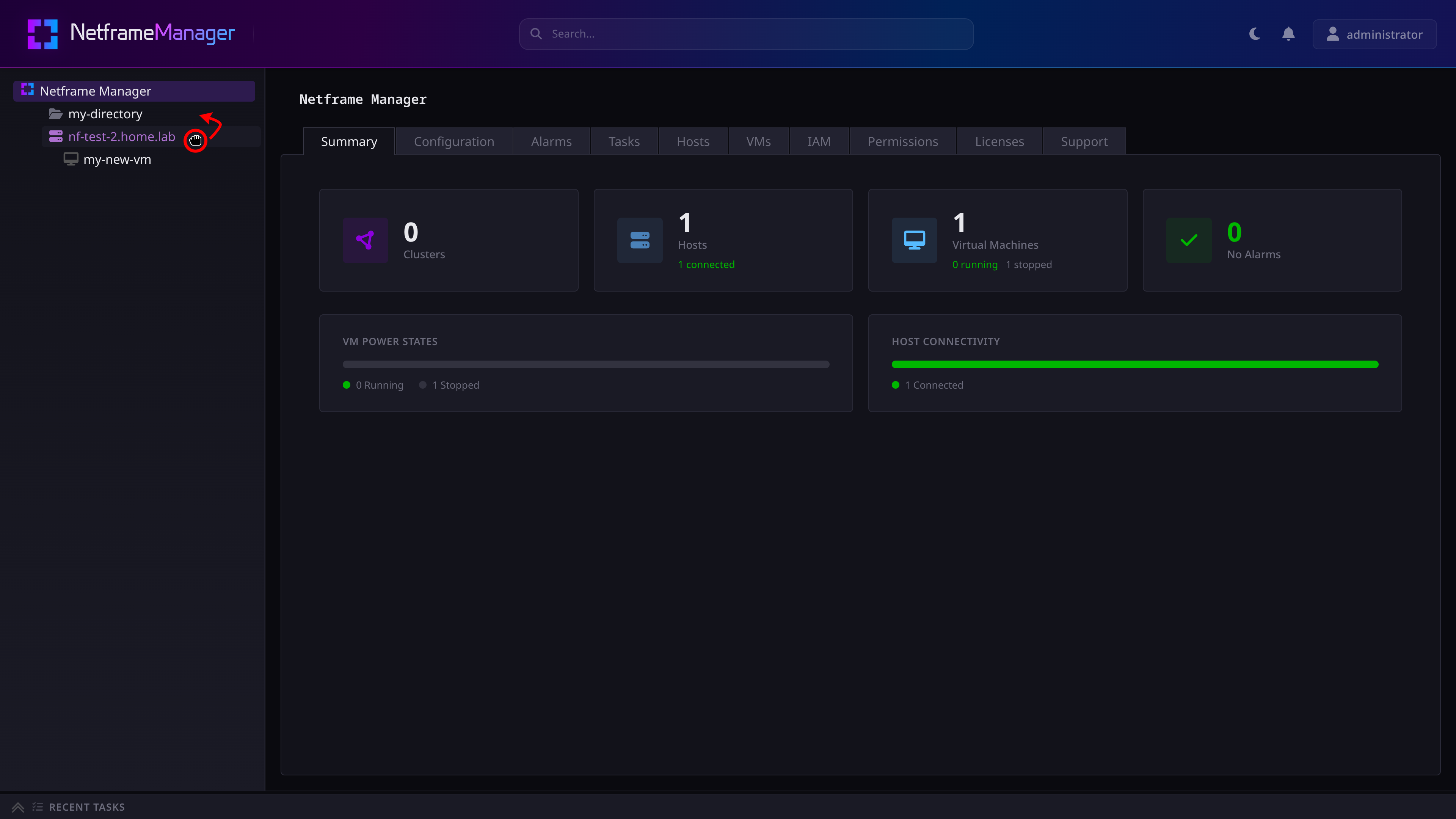
After creating the directory, Hosts can then be drag-and-dropped into the directory to move them.
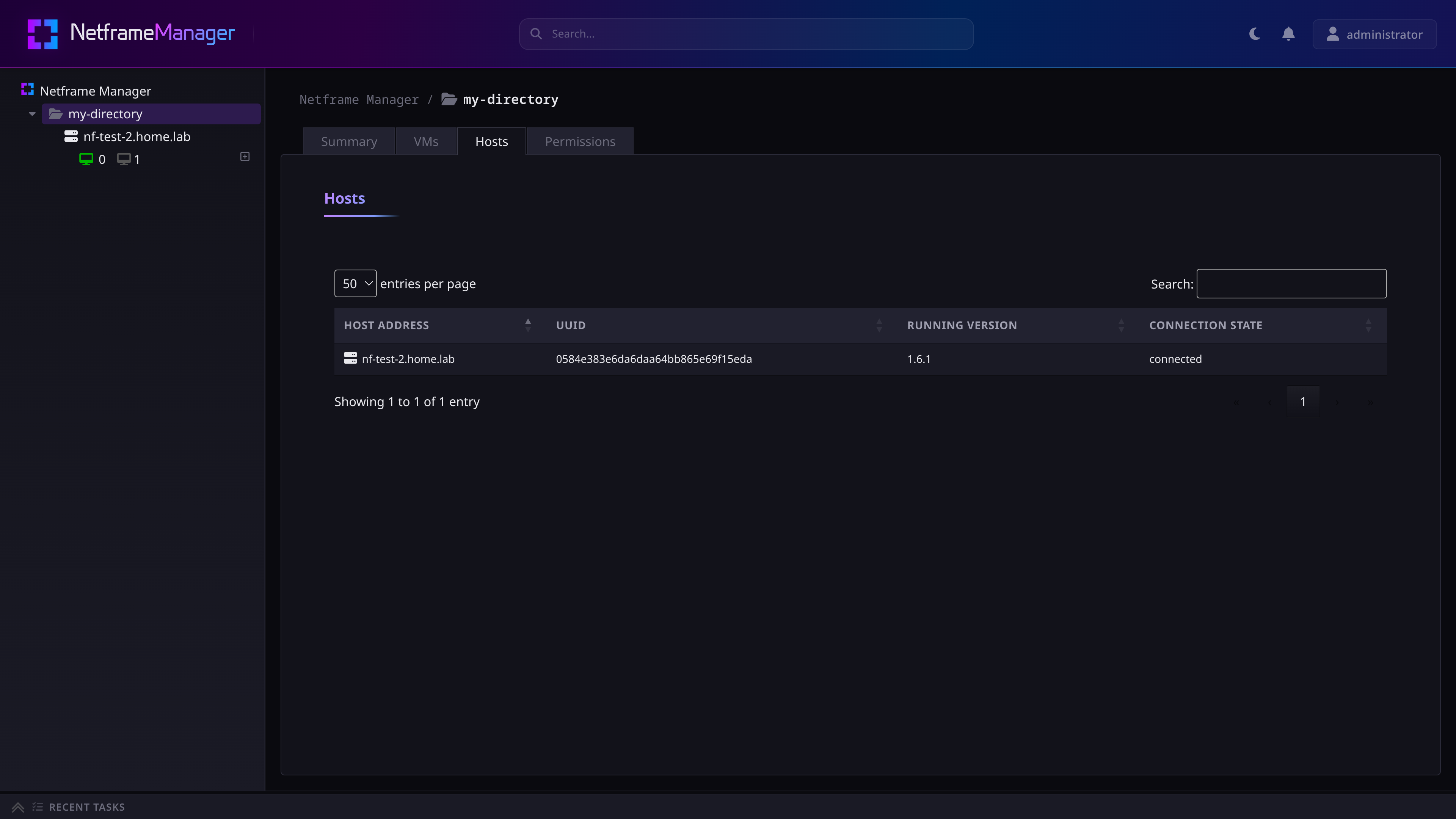
Access permissions can then be assigned to a directory via its Permissions tab. See Permissions & IAM for more info.
Furthermore, directories can have multiple nested subdirectories, each with their own Hosts, clusters, and access permissions. Directories can also be drag-and-dropped to move them around.
¶ Clusters
While directories are purely logical groupings, clusters containing three or more Hosts can enable High Availability (HA) to group Hosts and protect their VMs from outages.
To create a cluster, right-click either a directory or the Netframe Manager object, and select New Cluster.
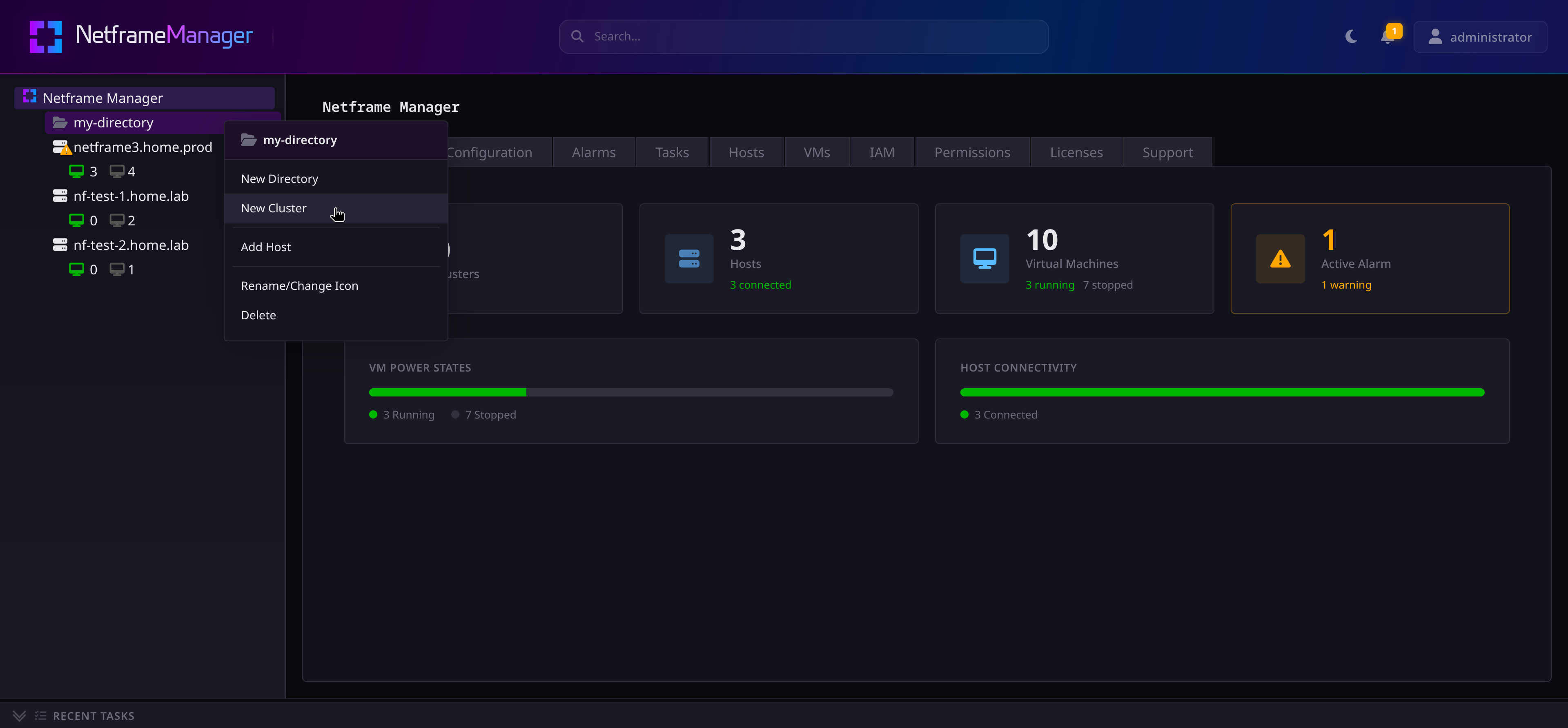
You can then name and create your cluster. Unlike directories, clusters can not have custom icons.
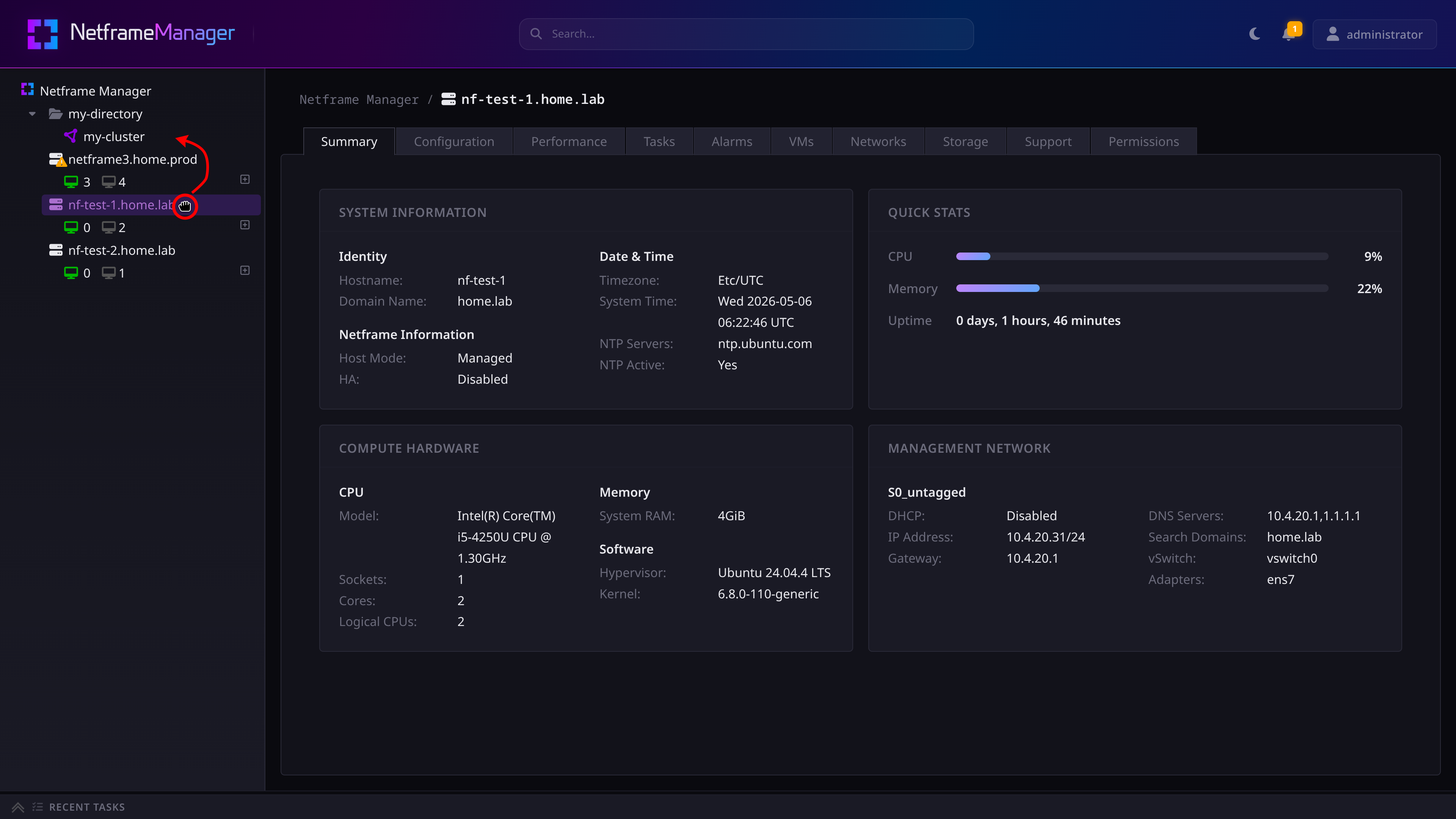
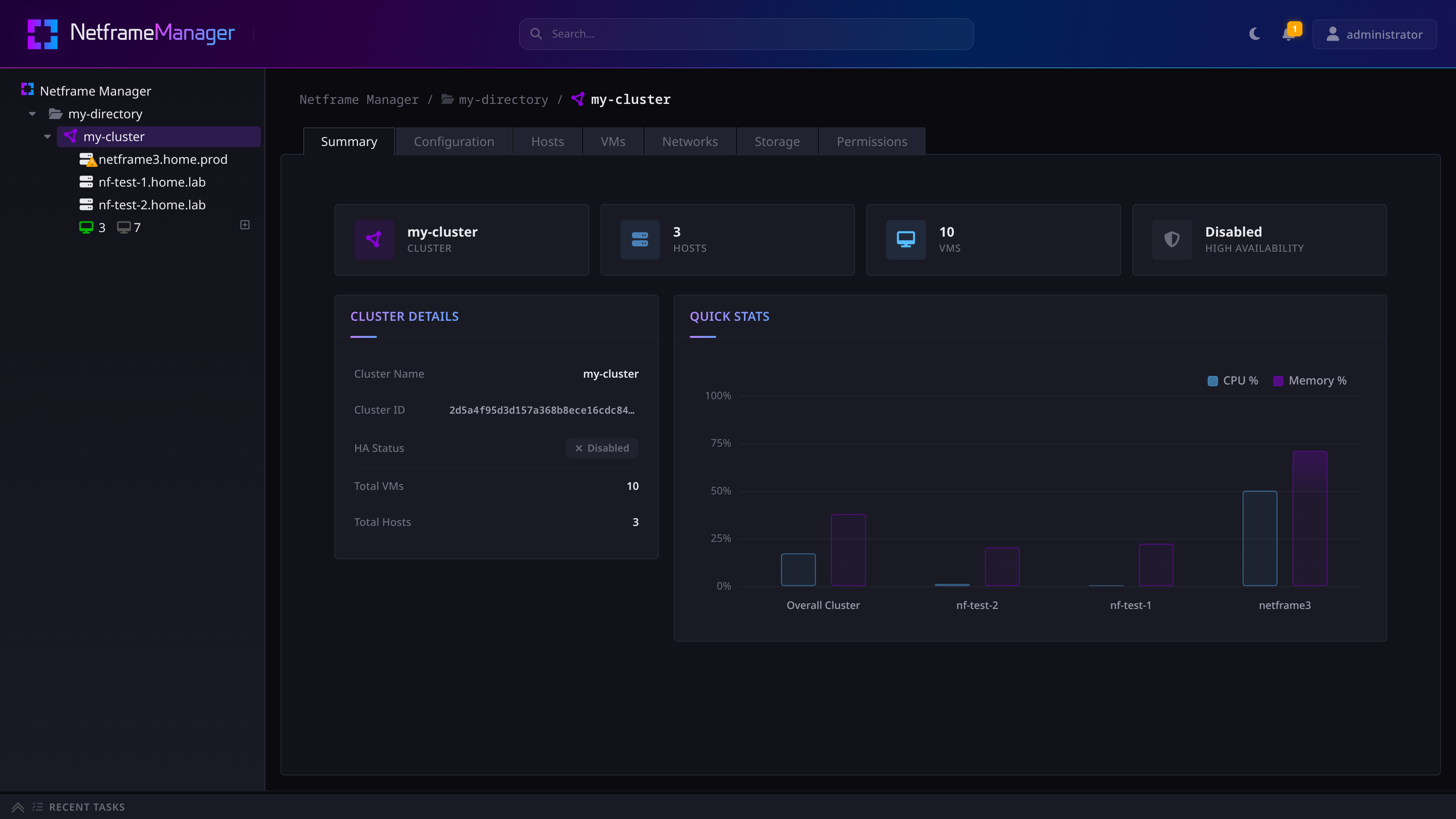
When added to a cluster, Hosts will be grouped together at the top, and their VM pools will be combined. The cluster's Summary page will show stats for the cluster and its Hosts.
As with directories, clusters can have access permissions assigned via the Permissions tab. See Permissions & IAM for more info.
While clusters can be drag-and-dropped to move them to a different directory, they cannot have nested subdirectories or clusters.
¶ Cluster Sync
Clusters collect and report the network and storage topologies of their Hosts, including whether networks or storage pools are synchronized between Hosts in the cluster.
¶ Networks
A cluster's Networks tab will show all networks across all Hosts in the cluster. Specifically, it will show:
- Each VSwitch and VMnet from each Host in the cluster
- All VMs that use a VMnet, regardless of their Host
- Whether a VSwitch or VMnet is present across all Hosts in the cluster
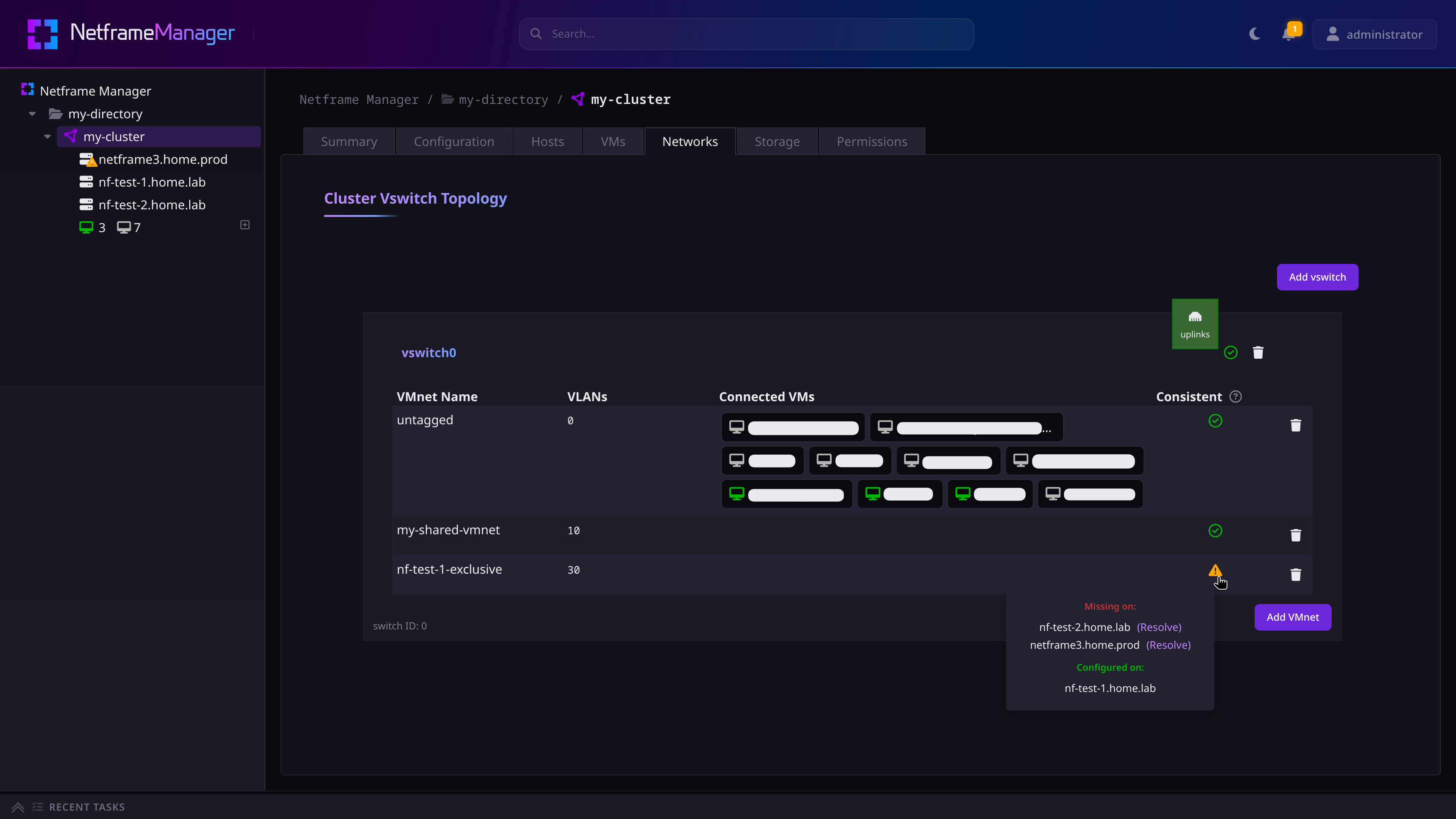
For any missing VMnets on a shared VSwitch, pressing the (Resolve) text on the warning popup will automatically add the VMnet to the target Host.
¶ Storage
A cluster's Storage tab will show all storage pools across all Hosts in the cluster. Specifically, it will show:
- All storage pools from each Host in the cluster
- Whether a storage pool is present on all Hosts in the cluster
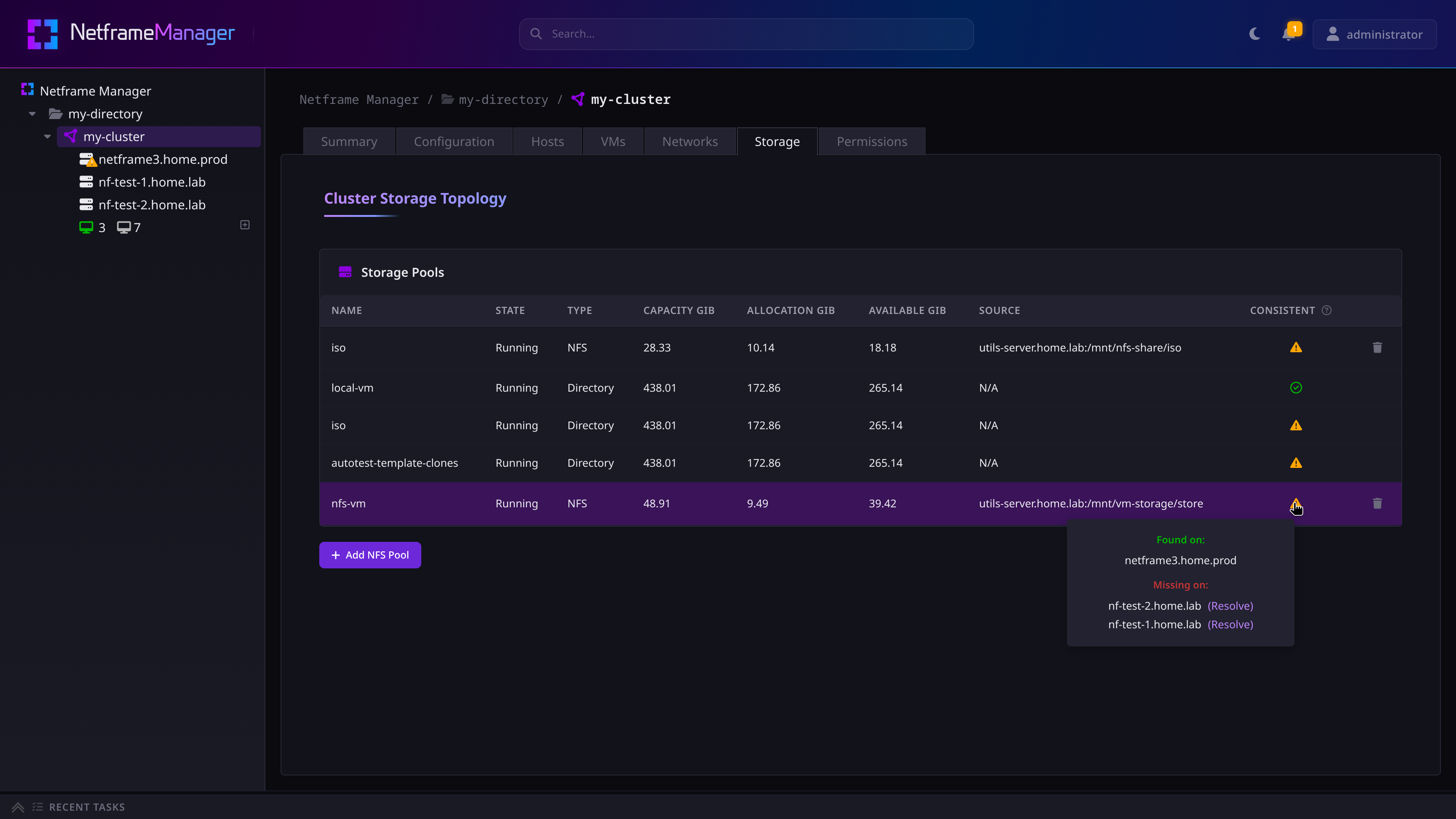
Warning: Currently a storage pool is only considered ‘consistent’ if all Hosts in the cluster have a storage pool with matching names and types. It DOES NOT ensure the pools are actually the same.
e.g. All Hosts come with a
local-vmstorage pool by default. A cluster with Hosts that have't removed thelocal-vmpool will report the pool as Cluster Consistent, even though each Host's pool is entirely local and not shared. This means the defaultlocal-vmstorage pool cannot be used for HA (see below)
NFS storage pools that aren't present on all Hosts in the cluster will also offer a Resolve option for automatically adding them to Hosts
¶ High Availability (HA)
High Availability (HA) is a feature that can be enabled on clusters to increase the resilience of its VMs; in the event that one of the Hosts in a cluster has an unexpected outage, all VMs protected by HA will automatically fail-over to a healthy Host in the cluster and attempt to reboot.
For HA to function properly, it is expected that all Hosts in an HA cluster have the same network and storage configuration. More specifically:
- HA can only be enabled on a cluster with 3 or more Hosts
- All Hosts in the cluster must have both forward and reverse DNS entries
- Protected VMs must use storage pools that all Hosts in the cluster have access to
- For the best results, the storage pools should be shared NFS pools
- The same VMnets should exist on all Hosts in the cluster
- If a VM uses a network that isn't also present on the other Hosts in the cluster, the HA fail-over will break the VM's network connection, and will require manual repair via the VM's Configuration settings
WARNING: It is currently the operator's responsibility to ensure that HA is properly configured and all VMs are capable of starting after a failover attempt. If HA has not been configured properly, the reboot attempt will fail the cluster may be broken. Please ensure that all of the above conditions are satisfied before relying on HA.
See also: cluster storage
¶ Enabling High Availability
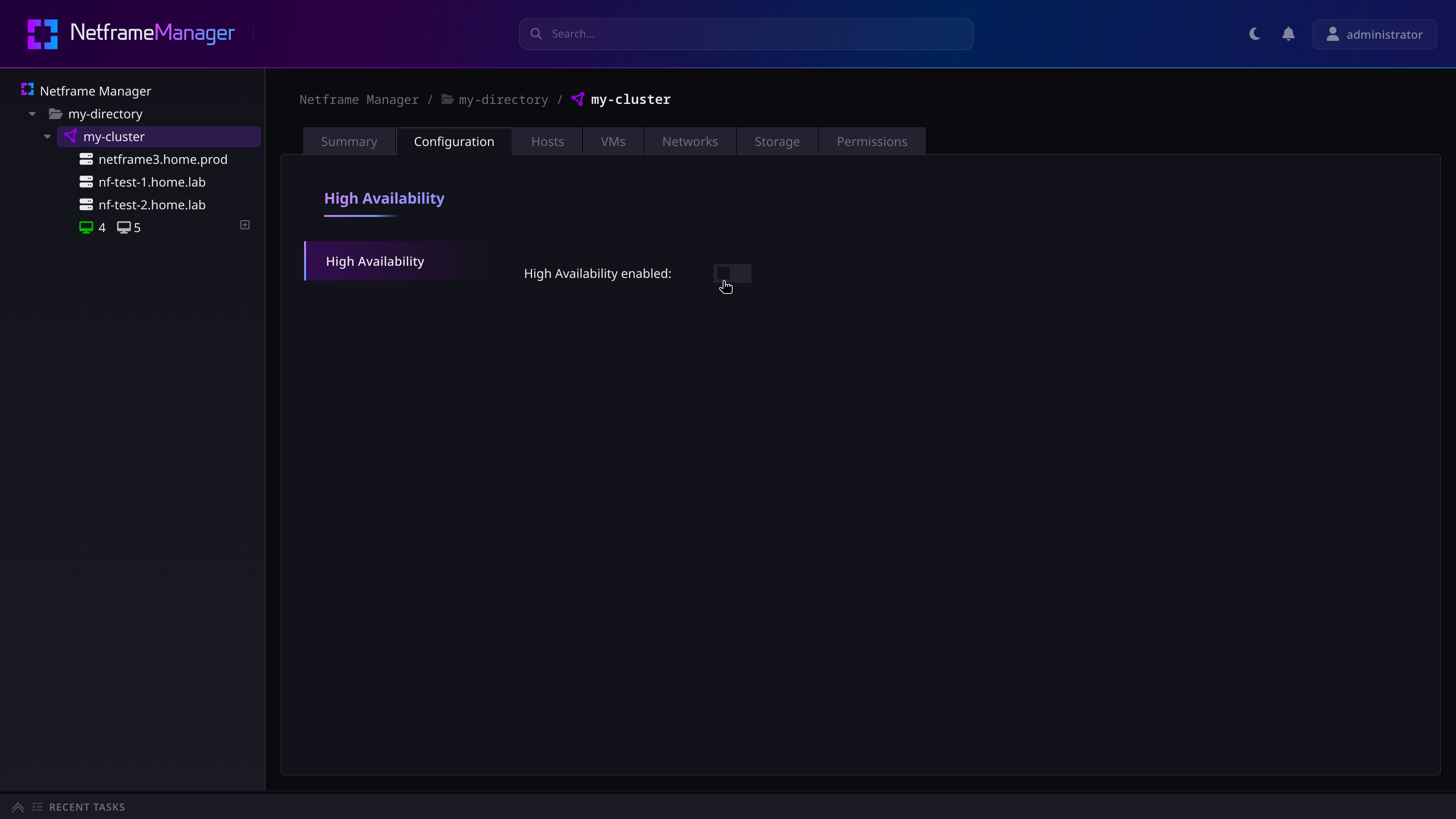
To enable HA on a cluster that satisfies the above conditions, navigate to the cluster's Configuration tab, and toggle-on the ‘High Availability Enabled’ button.
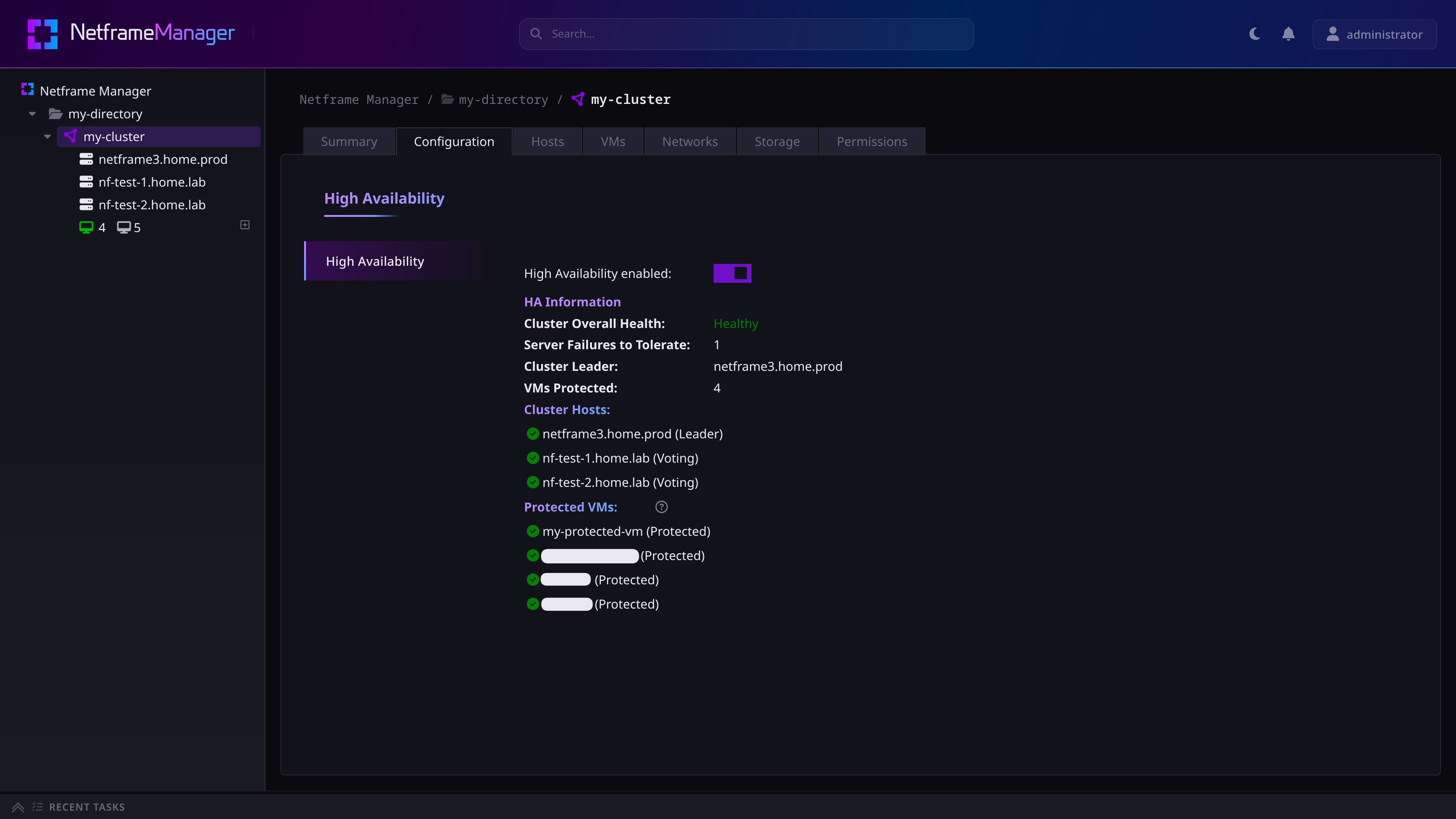
After HA finishes enabling, the Configuration tab will now show details about the HA's current state.
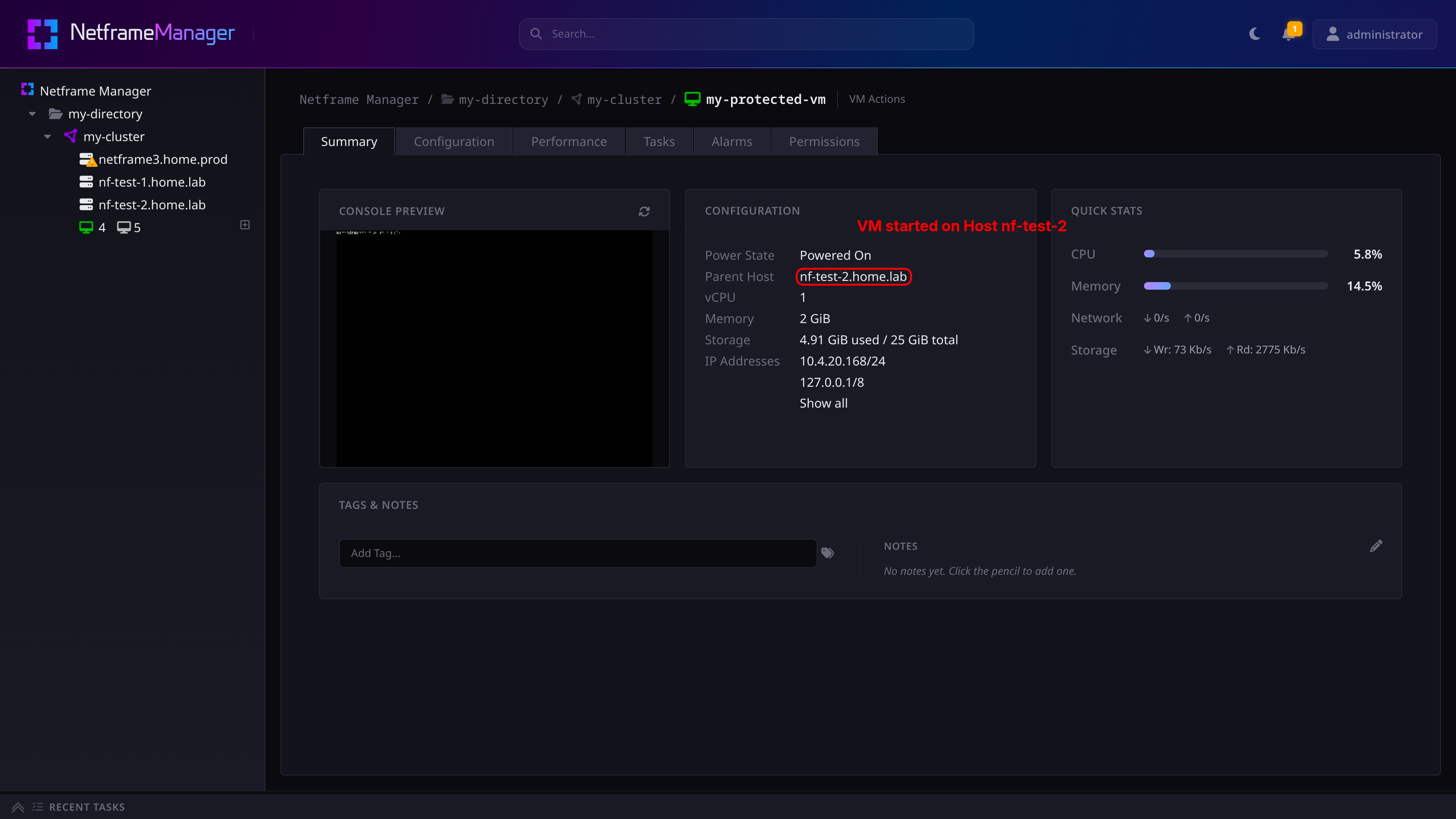
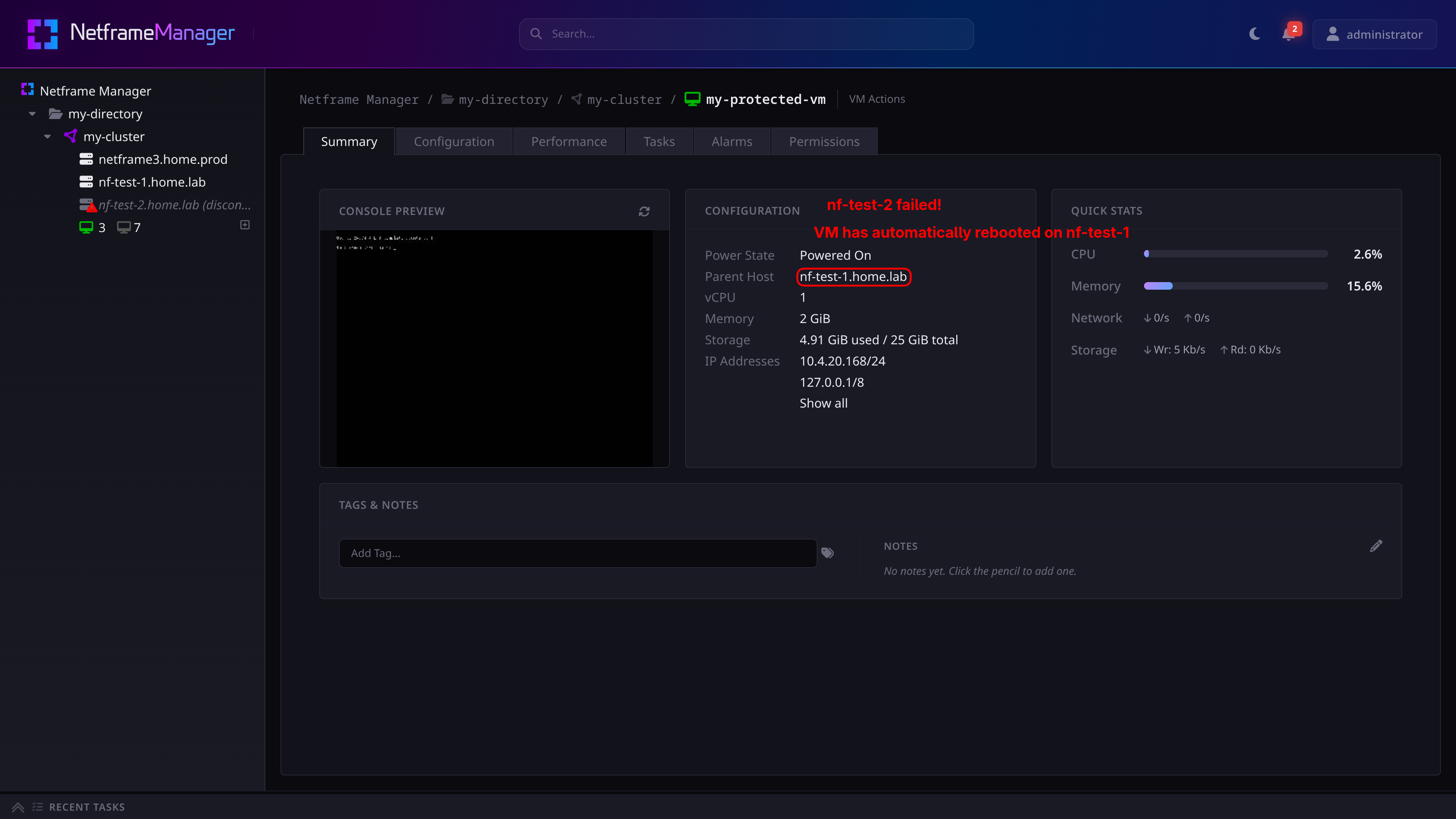
Now, in the event that a protected VM's Host fails, the VM will automatically restart on a different healthy Host in the cluster.
¶ Key Differences Between Clusters and Directories
- Directories can have nested subdirectories and clusters
- Clusters can enable HA for their VMs
- Directories treat their Hosts as independent units
- Clusters treat their Hosts as a single logical unit
- Clusters provide more detailed summary statistics
- Both can have equally fine-grained access permissions