¶ Creating a new VMnet
To create a new VMnet, select the Host object and navigate to its Networks tab.
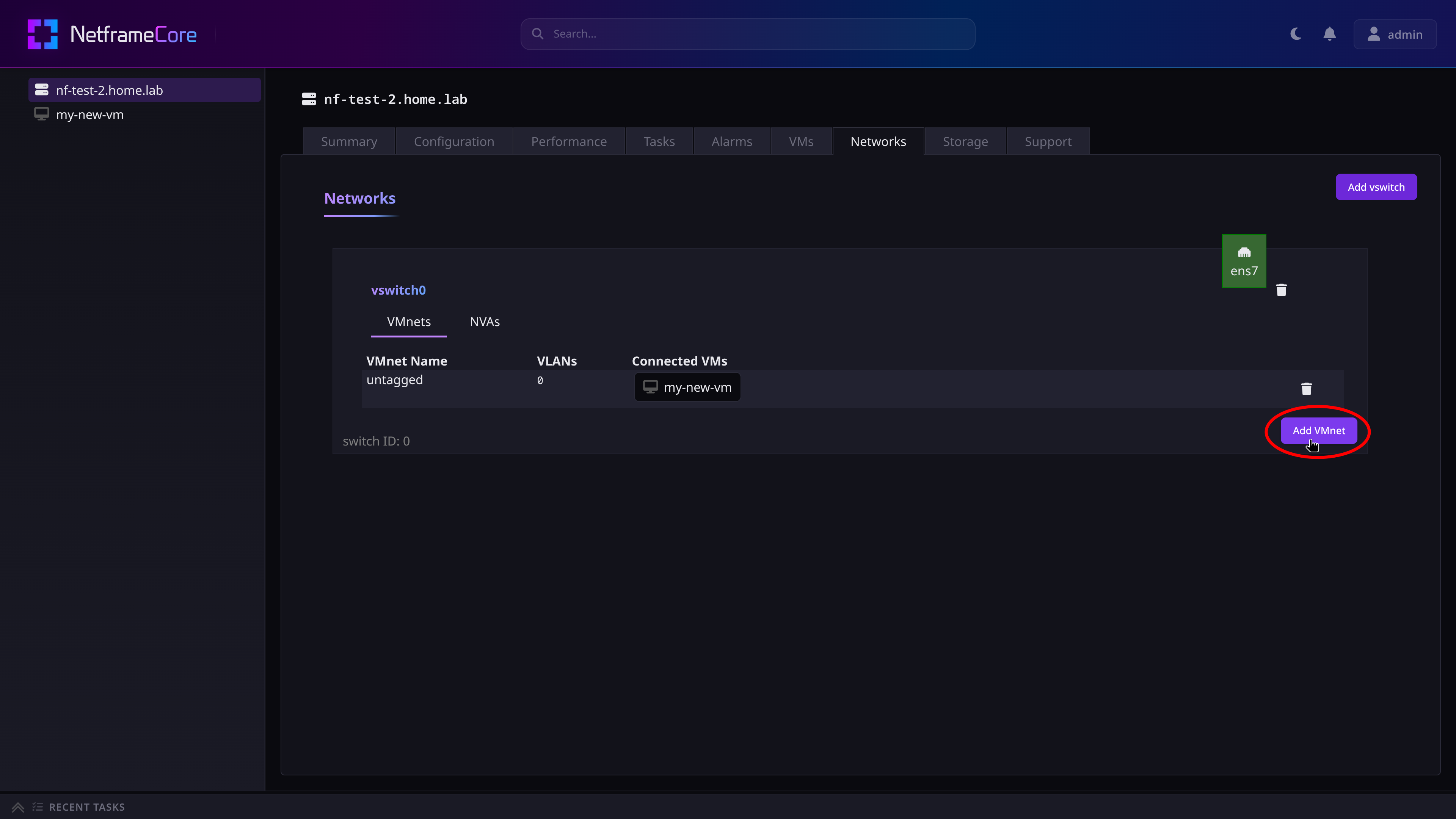
Choose your vswitch, and select Add VMnet within it.
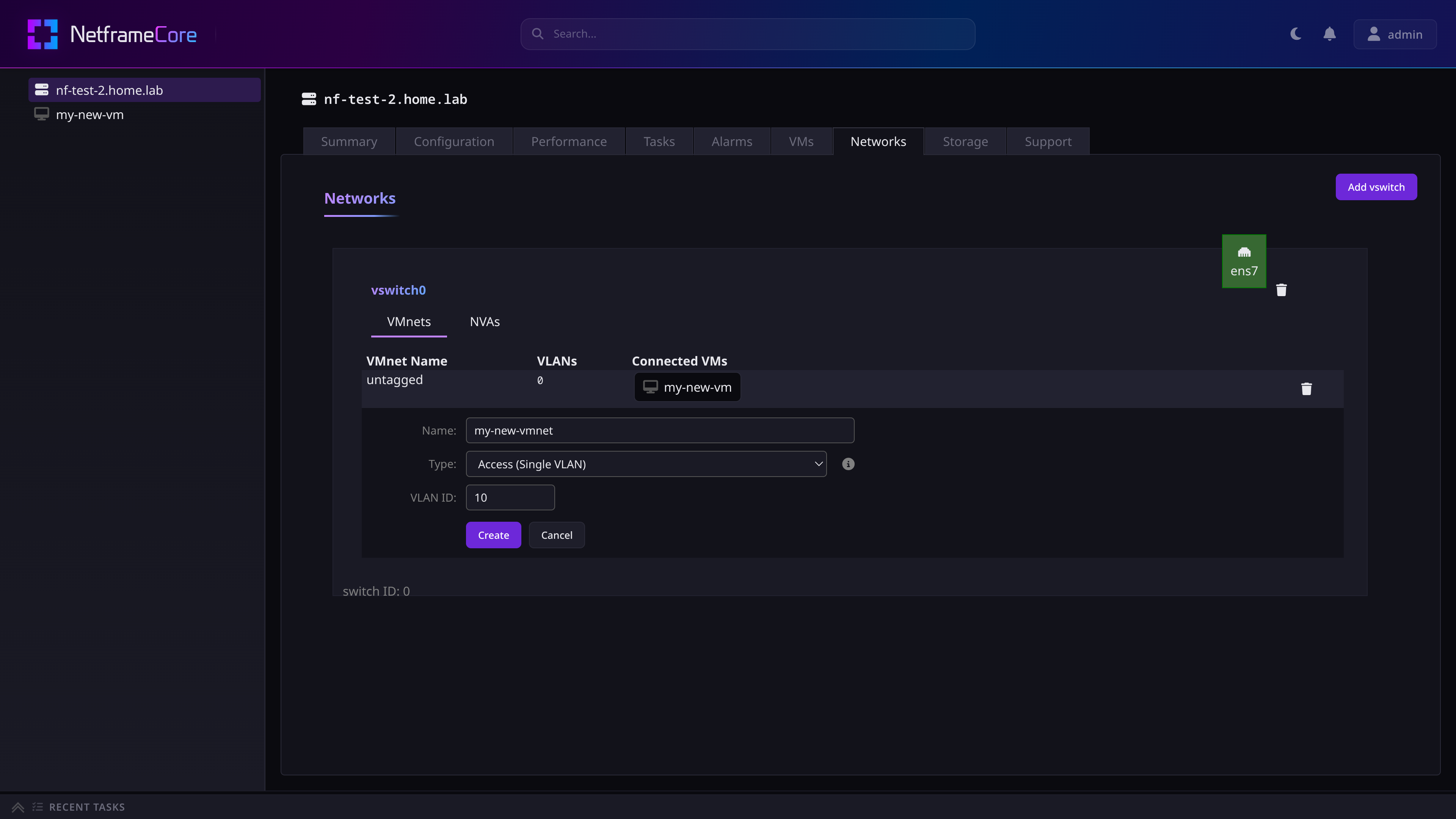
Name your new VMnet, and choose which VLAN ID to use for it.
- A VLAN ID of
0will set traffic tountagged
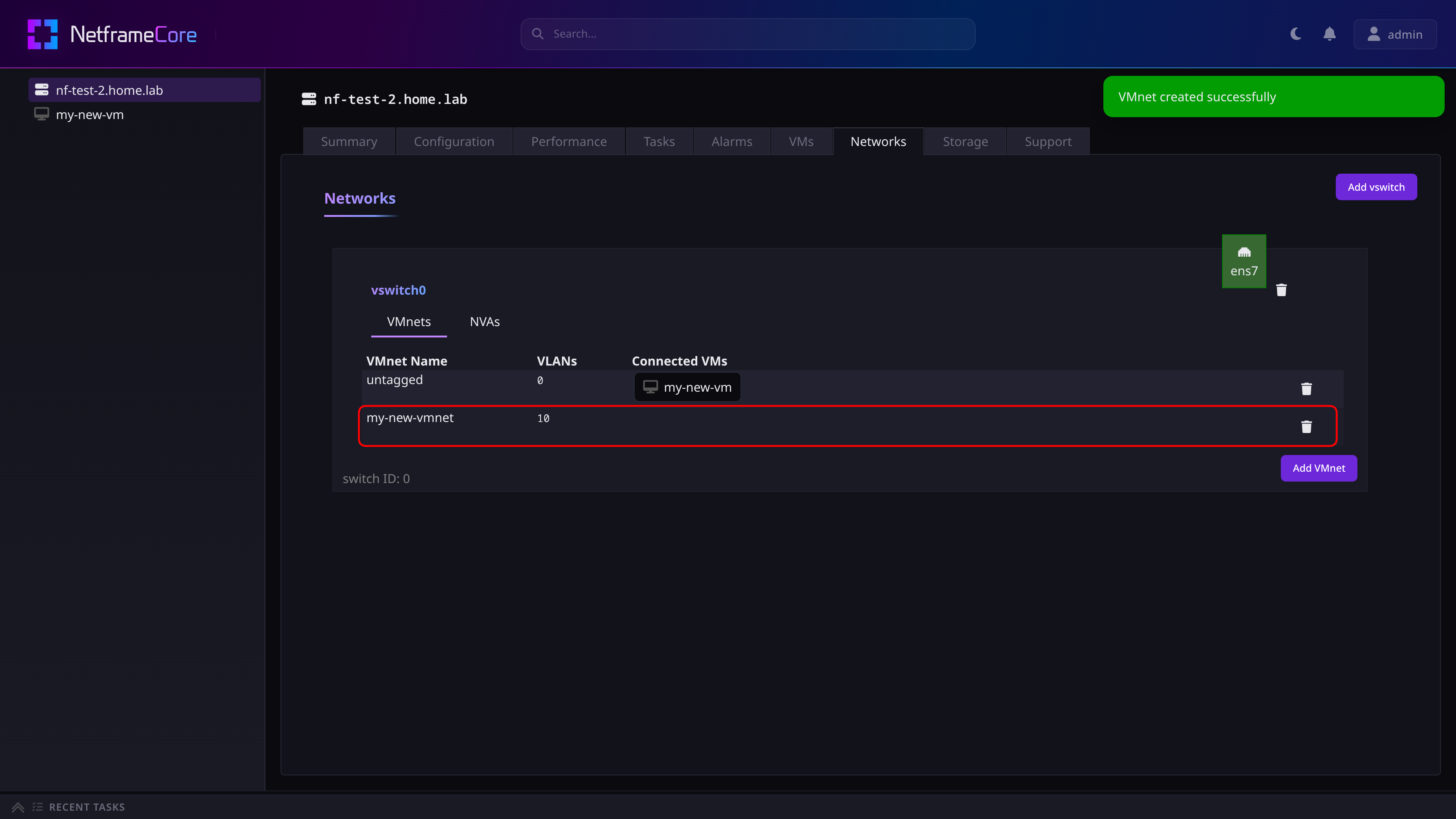
After pressing confirm, you should see your new VMnet appear on the vswitch. You will note however that there are no VMs connected to the VMnet yet.
¶ Connecting VMs to a VMnet
To connect a VM to a VMnet, you can either modify an existing network connection to “move” it to the new network, or you can add a new network connection to the VM. VMs can be connected to multiple VMnets, but whether you choose to do so depends on your specific use case.
¶ Adding a New Network Connection to a VM
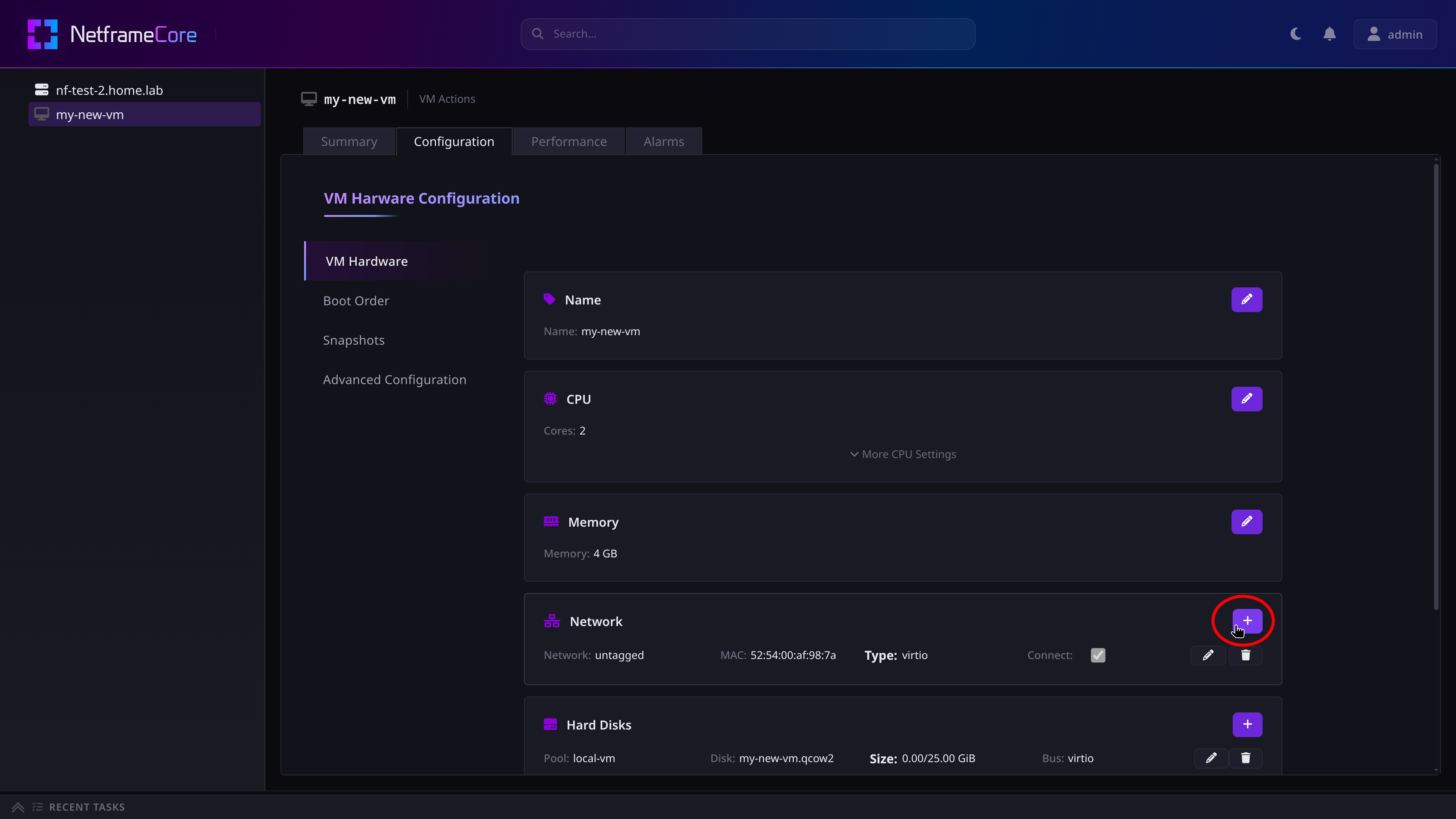
- Navigate to your VM's Configuration tab
- Open the VM Hardware sub-tab
- Find the
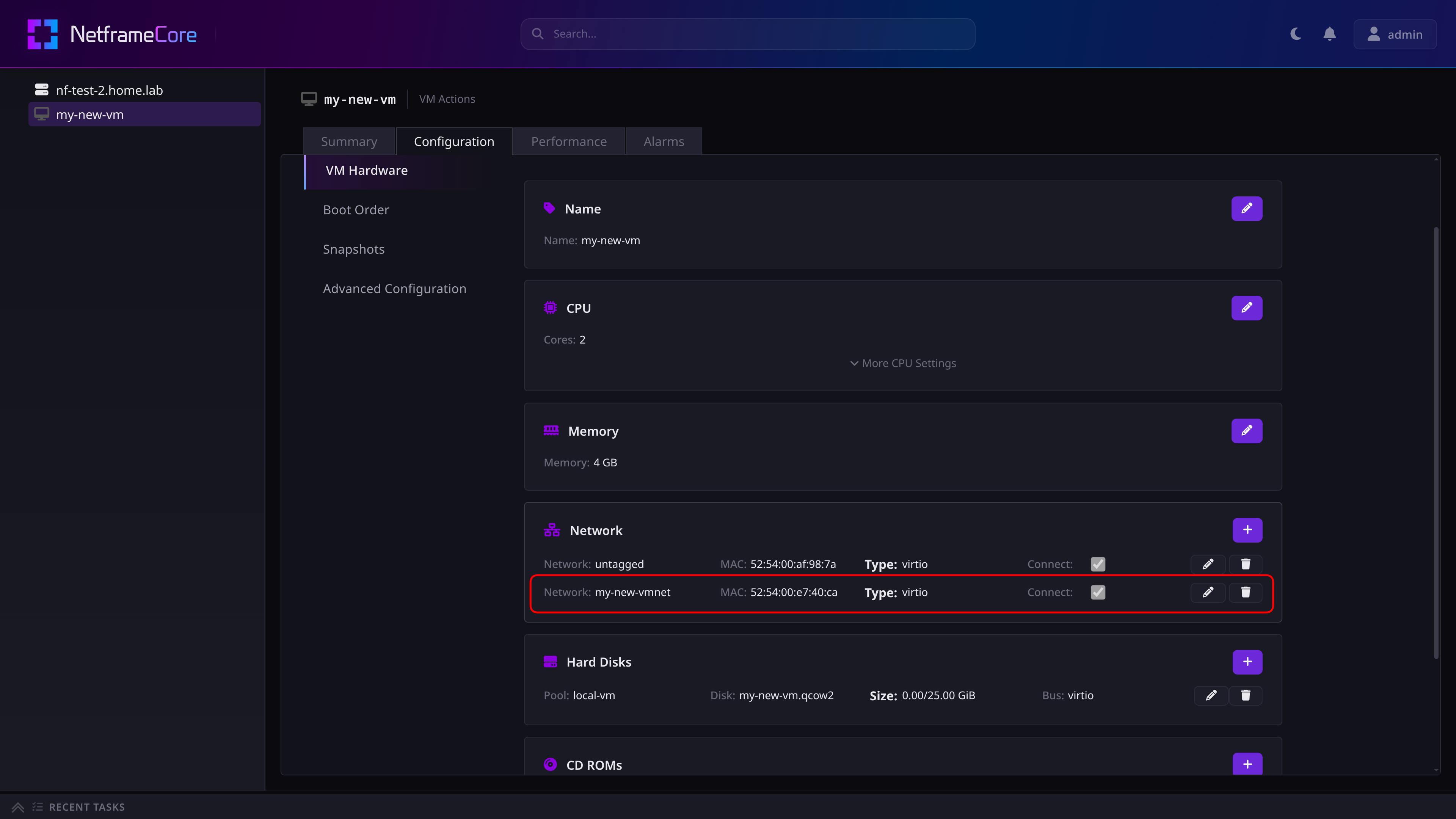
Networkentry, and press the Add button
- Choose your VMnet from the dropdown, and your network connection type
- Note: For Windows VMs, the
virtioconnection type should only be selected after installing the VM's guest tools (more info)
- Note: For Windows VMs, the
- Press the save button
Your VM will now be connected to the new network.
¶ Moving a VM's Existing Connection to a Different Network
- Navigate to your VM's Configuration tab
- Open the VM Hardware sub-tab
- Find the
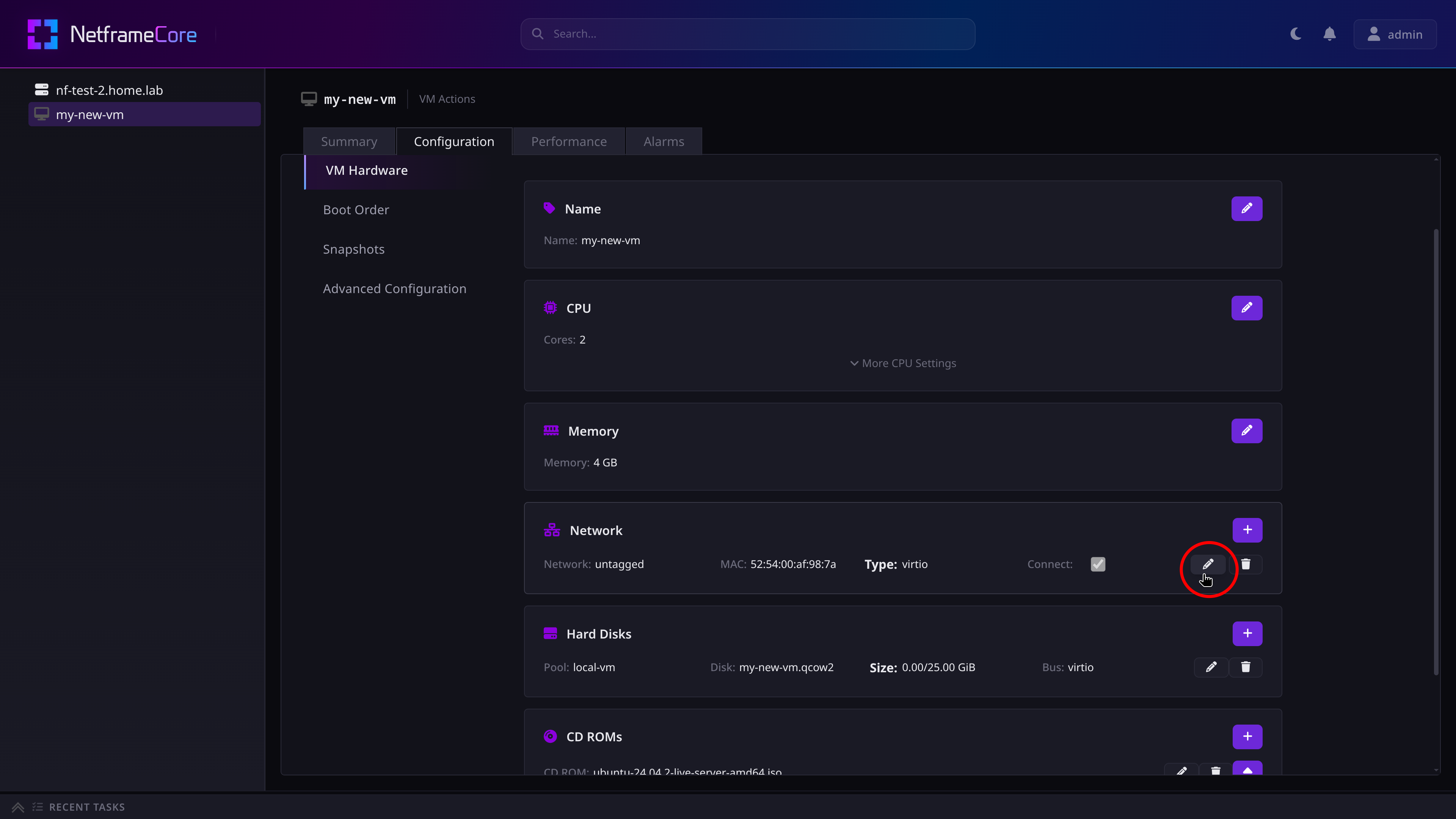
Networkentry, and find the network connection you want to change - Press the connection's pencil icon to edit it
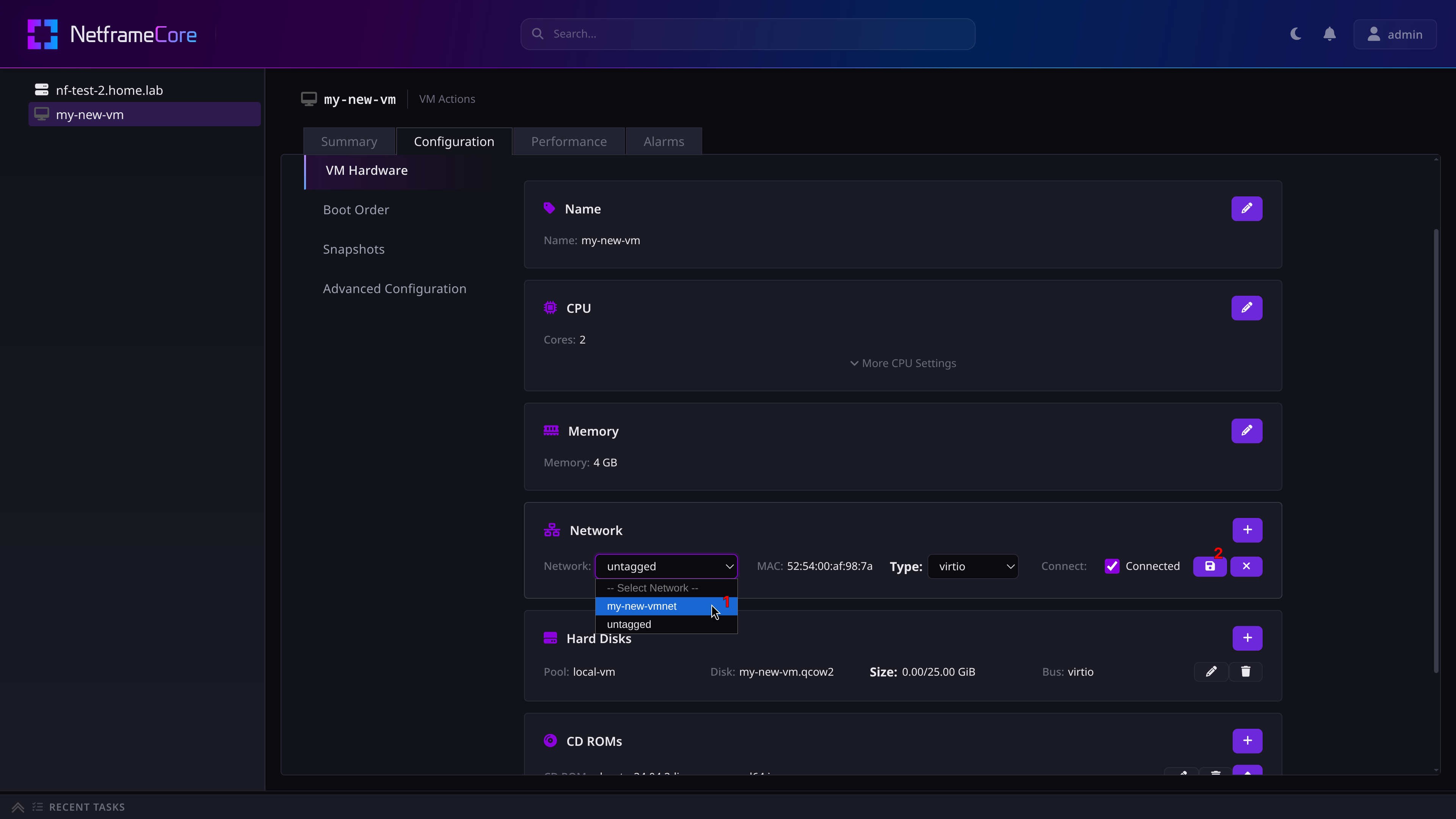
- Choose the new network from the dropdown, and press the save button
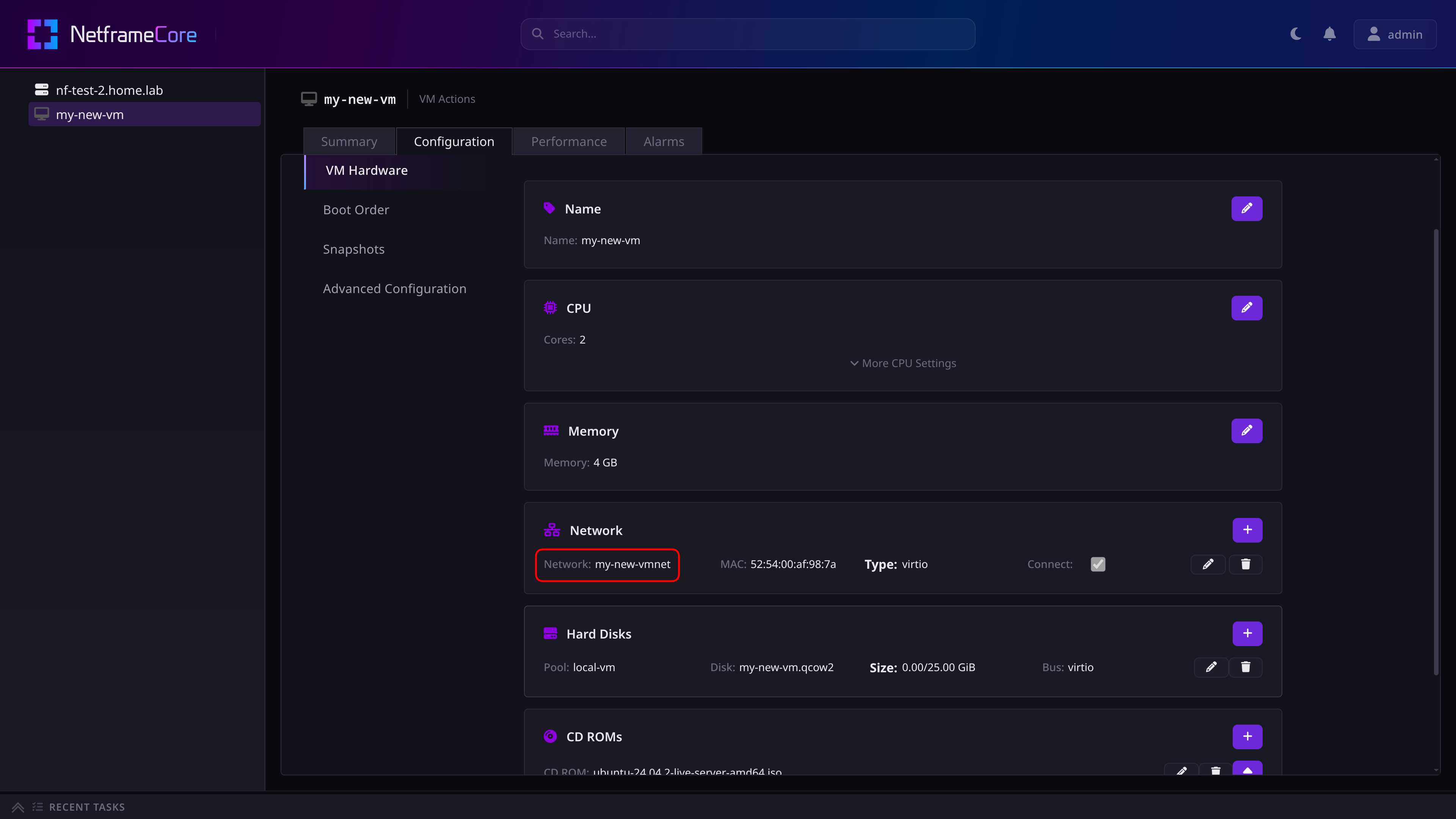
Your VM will now be disconnected from the original network, and instead connected to the new network
¶ Managing Network Adapters and Vswitches
TBA
¶ Creating a new Vswitch
¶ Setting Network Adapters UP or DOWN
¶ Changing which NICs a Vswitch is using
see HCUI